


NumPy is a versatile Python library that supports numerical computing.
You can run NumPy on your computer using the following two methods:
- Run NumPy online
- Install NumPy on your computer
In this tutorial, you will learn both methods.
Run NumPy Online
To run NumPy code, you must install the NumPy library in your Python environment. For a quick start, you can use our online Python editor, which already includes support for NumPy.

The online editor allows you to run Python code with NumPy directly in your browser—no installation is required.
Install NumPy on Your computer
For those who prefer to install NumPy on your computer, this guide will walk you through the installation process on Windows, macOS, or Linux (Ubuntu).
You need to have Python and NumPy installed on your system to use NumPy. Follow these steps to get started with NumPy on Windows:
- Install VS Code
- Download and Run the Python Installer File
- Install Python
- Install NumPy
- Verify the Installation
Here is a detailed explanation of each of the steps:
Step 1: Install VS Code
Go to the VS Code official website and download the Windows installer. Once the download is complete, run the installer and follow the installation process.
Click Finish to complete the installation process.
Step 2: Download and Run the Python Installer File
Go to the official Python website and download the latest version for Windows.
The website automatically detects your operating system and gives you the correct installer.
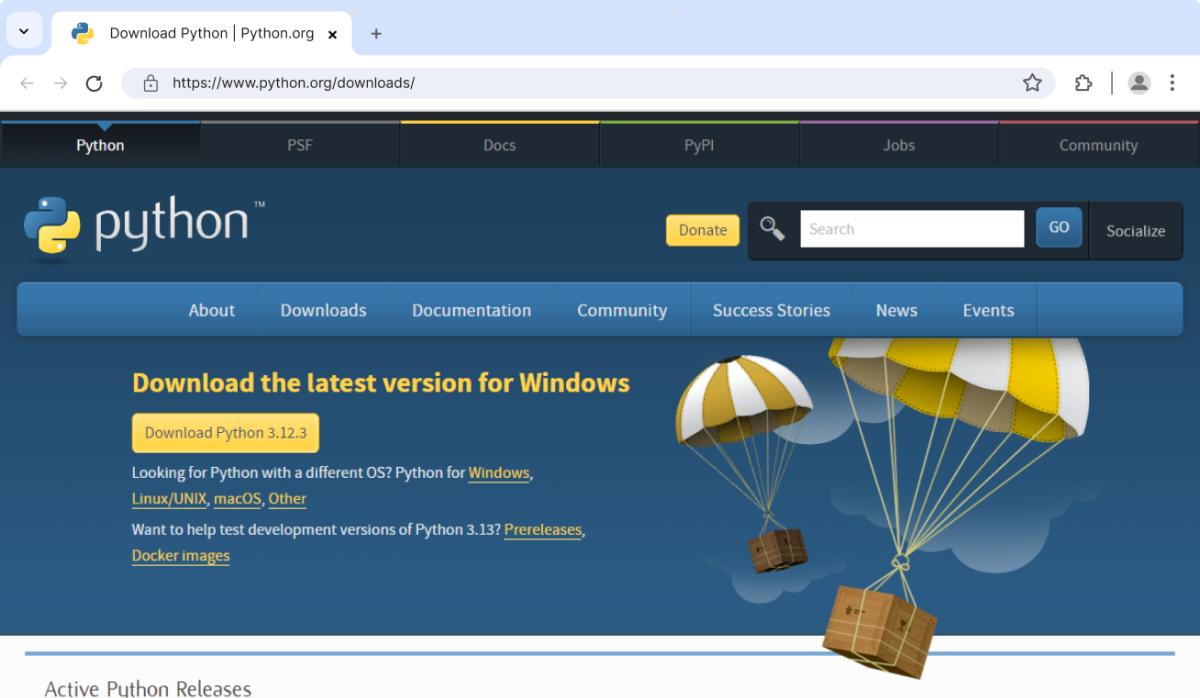
Once the download is complete, navigate to your download folder and run the installer. Depending on your security settings, you might be prompted to allow access.
Simply allow it and proceed.
Step 3: Install Python
Once you have run the installer, you will come across this screen.

You will see two options on the screen: Install Now and Customize Installation. We suggest you skip all customization steps and simply click Install Now.
- Check on Add python.exe to PATH as it ensures Python is added to our system's PATH variable. (Recommended)
- Click Install Now, as it will include all the necessary files needed later.
This makes it easier to run a Python Program from the command prompt (cmd) directly without specifying the full path of the Python executable.
After using this option, Python will be successfully installed on your device.
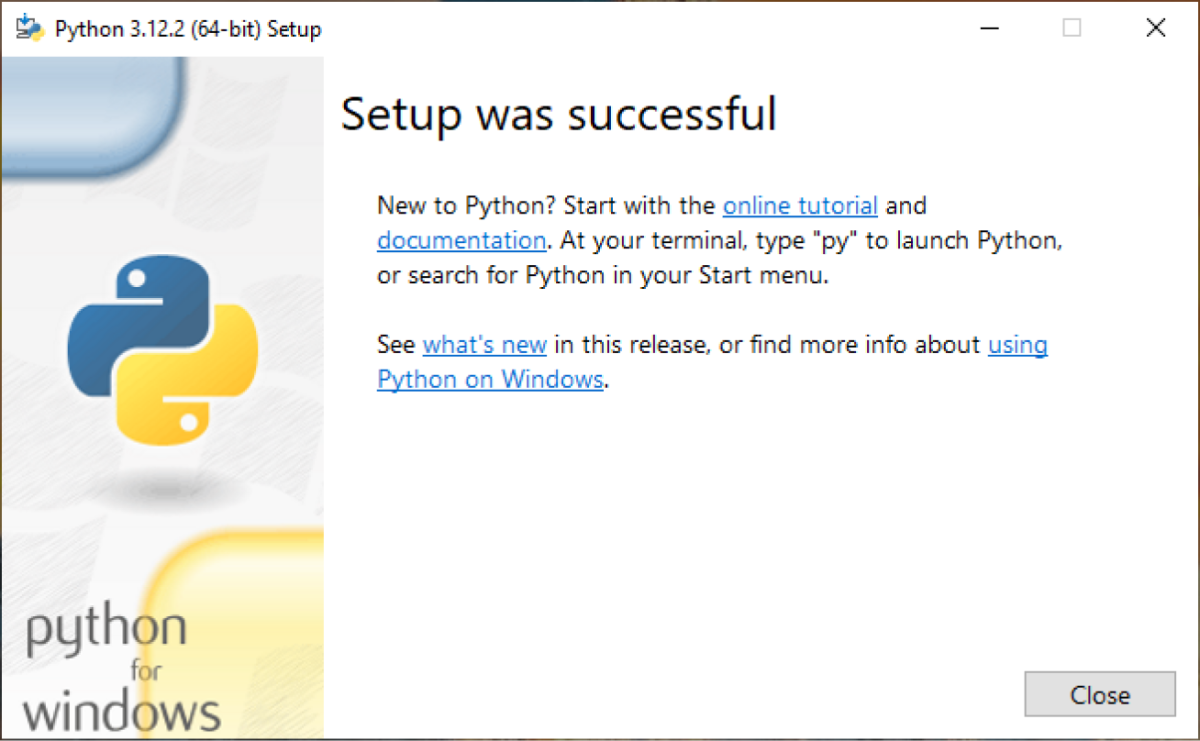
You can verify whether Python is installed using the following command in the command prompt.
python --version

Note: The version number might differ from the one above, depending on your installed version.
Now that you have Python installed, you're ready to add any Python libraries you want to work with. In the next step, we'll install the NumPy library.
Step 4: Install NumPy
Open VS Code, then open a new terminal (use
Ctrl + `
for keyboard shortcut).
In the terminal, type the following command to install NumPy:
pip install numpy

The installation process takes a few moments.
Step 5: Verify the Installation
After installing NumPy, open your terminal or command prompt and run the following command to verify the installation:
python -c "import numpy; print(numpy.__version__)"
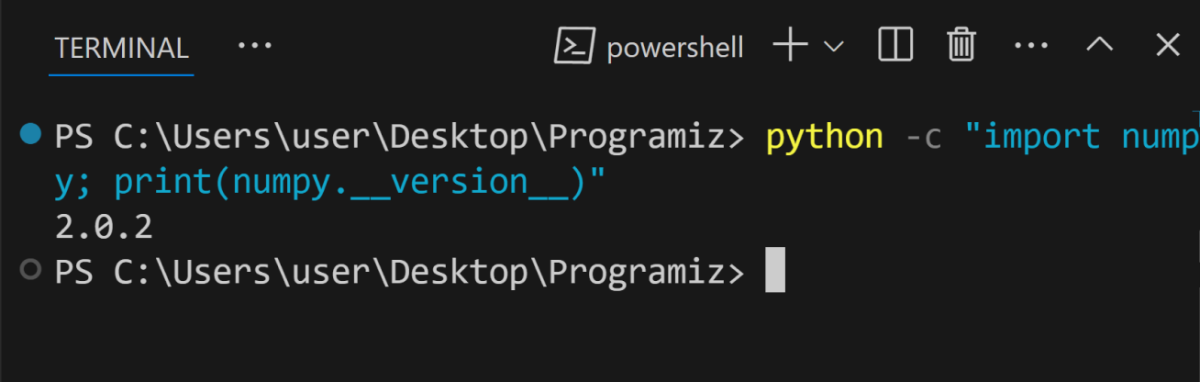
Note: The version number might differ from the one above, depending on your installed version.
Now, you can run Python programs using NumPy on your device.
You need to have Python and NumPy installed on your system to use NumPy. Follow these steps to get started with NumPy on MacOS:
- Install VS Code
- Check the Python Version
- Download the Python Installer File
- Run Python Installer
- Follow the Instructions
- Verify Python installation
- Install NumPy
- Verify NumPy Installation
Here is a detailed explanation of each of the steps:
Step 1: Install VS Code
Go to the VS Code official website and download the zipped file. Once the download is complete, open the zipped file.
In Finder, open a new window and navigate to the Applications folder. Drag the VS Code application from the zip file into the Applications folder to install it.
You can now launch VS Code directly from the Applications folder.
Step 2: Check the Python Version
Since macOS often comes with an older version of Python (Python 2.x) pre-installed on it, you can check the current version by using the following command in the Terminal app.
python -- version
Or, for Python 3:
python3 -- version
If you are satisfied with the installed version of Python 3.x, you can skip the remaining steps. Otherwise, follow the steps below.
Step 3: Download the Python Installer File
Visit the official Python website and download the latest version (Python 3.12.2 at the time of writing this tutorial) for Mac.
The website automatically detects your operating system and gives you the right installer.

Step 4: Run the Installer
Go to your downloads folder and run the installer you just downloaded.

Step 5: Follow the Instructions
You will be prompted to agree to the software license agreement, choose the installation location (we recommend using the default location), and enter your administrator password.
Simply proceed through it.
Once the installation is complete, you will see this screen:
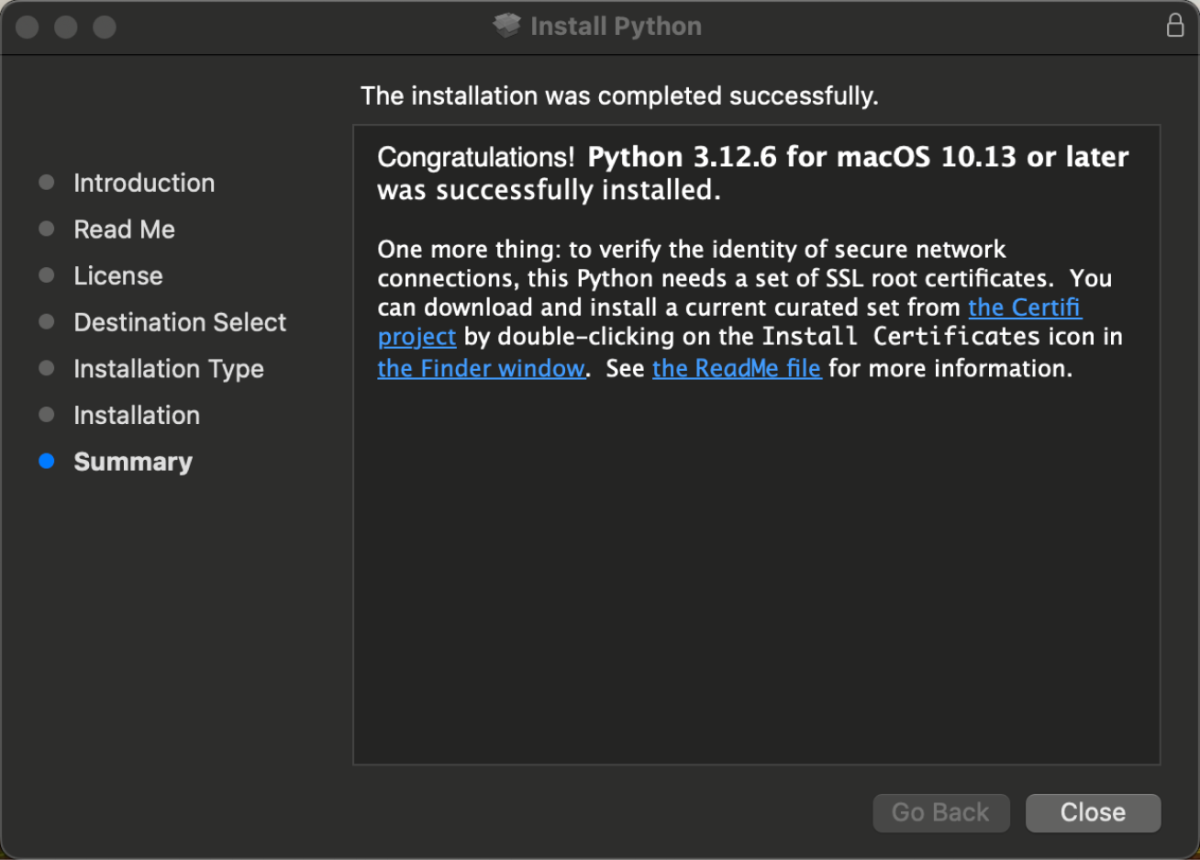
Step 6: Verify the Installation
Once the installation is complete, you can verify whether Python is installed using the following command in the Terminal app.
python3 -- version

Note: The version number might differ from the one above, depending on your installed version.
Now that you have Python installed, you're ready to add any Python libraries you want to work with. In the next step, we'll install the NumPy library.
Step 7: Install NumPy
In the terminal, type the following command to install NumPy:
pip3 install numpy

The installation process takes a few moments.
Step 8: Verify the NumPy Installation
After installing NumPy, open your terminal and run the following command to verify the installation:
python3 -c "import numpy; print(numpy.__version__)"

Note: The version number might differ from the one above, depending on your installed version.
Now, you can run Python programs using NumPy on your device.
Linux has various distributions, and the installation process differs slightly from each other. For now, we will focus on Ubuntu.
To install NumPy, follow these steps:
- Install VS Code
- Install Python
- Install pip
- Create a Virtual Environment
- Activate the Python Virtual Environment
- Install NumPy
- Verify the Installation
Here is a detailed explanation of each of the steps:
Step 1: Install VS Code
Open the Terminal and type:
sudo apt update
This command updates your package lists to ensure you get the latest versions of your software.
Proceed to install VS Code with:
sudo snap install code --classic
Step 2: Install Python
Generally, Python is pre-installed on every Linux distribution. However, if that's not the case, you can install Python on your computer.
First, Update the package list to ensure you get the latest version available:
sudo apt update
Then Install Python 3:
sudo apt install python3
This command installs Python, documentation, and other useful packages.

Step 3: Install pip
To install NumPy, we need pip - the Python package manager. To install pip run the following command:
sudo apt install python3-pip

Step 4: Create a Virtual Environment
Before we install NumPy, we'll create a virtual environment.
To do so, move to the desired directory within your computer and run the following command:
python3 -m venv .venv

Step 5: Activate the Python Virtual Environment
We then need to activate the Python virtual environment, to do so, run the following command:
source .venv/bin/activate