Model タブ
モデルを選択すると、モデルファイルの インポート設定 が Inspector ウインドウの Model タブに表示されます。これらの設定は、モデル内に格納されるさまざまな要素やプロパティーに影響します。Unity はこれらの設定を使用して各アセットをインポートします。ですから、設定を調整しプロジェクト内の様々なアセットに適用できます。
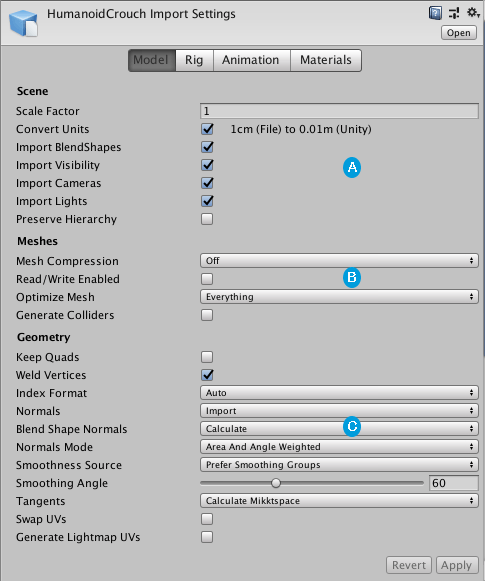
このセクションでは、Model タブの各セクションに関して説明します。
 Scene-level properties, such as whether to import Lights and Cameras, and what scale factor to use.
 Properties specific to Meshes.
 Geometry-related properties, for dealing with topology, UVs, and normals.
Scene
| プロパティー | 機能 |
|---|---|
| Scale Factor | 元のファイルスケール (Model ファイルからのもの) がプロジェクトの意図したスケールに合わない場合は、この値を設定し、インポートしたモデルにグローバルスケールを適用します。Unity の物理システムは、ゲーム世界での 1 メートルがインポートされたファイルの 1 ユニットになると仮定します。 |
| Convert Units | Enable this option to convert the Model scaling defined in the Model file to Unity’s scale. |
| Import Blendshapes | Enable this property to allow Unity to import blend shapes with your Mesh. See Importing blend shapes below for details. Note: Importing blend shape normals requires smoothing groups in the FBX file. |
| Import Visibility | これを有効にすると、MeshRenderer コンポーネントが有効 (表示されている) かどうかを定義する FBX 設定をインポートします。 詳細は、後述の 可視性のインポート を参照してください。 |
| Import Cameras | これを有効にすると .FBX ファイルからカメラをインポートできます。詳しくは後述の カメラのインポート を参照してください。 |
| Import Lights | これを有効にすると .FBX ファイルからライトをインポートできます。詳しくは後述の ライトのインポート を参照してください。 |
| Preserve Hierarchy | これを有効にすると、このモデルにルートが 1 つしかない場合でも、必ず明示的なプレハブルートを作成します。 通常、FBX インポーターは最適化の方法としてモデルから空のルートノードを取り除きます。 ただし、同じ階層の一部を含む複数の FBX ファイルがある場合は、このオプションを使用して元の階層を維持することができます。 例えば、file1.fbx にはリグとメッシュが含まれ、file2.fbx にも同じリグが含まれていますが、そのメッシュのアニメーションのみが含まれています。 このオプションを有効にせずに file2.fbx をインポートすると、Unity はルートノードを取り除くため階層が一致せず、アニメーションは壊れます。 |
Importing blend shapes
Unity supports blend shapes (morphing) and can import blend shapes from FBX and DAE files exported from 3D modeling applications. You can also import animation from FBX files. Unity supports vertex-level animation for blend shapes on vertices, normals and tangents.
Skin and blend shapes can affect Meshes at the same time. When Unity imports Meshes containing blend shapes, it uses the