Foundry Toolkit for Visual Studio Code
Foundry Toolkit for Visual Studio Code helps developers and AI engineers build, test, and deploy AI apps with generative AI models. You can use it locally or in the cloud to manage your full AI app workflow in one place.
Foundry Toolkit offers seamless integration with popular AI models from providers like OpenAI, Anthropic, Google, and GitHub, while also supporting local models through ONNX and Ollama. From model discovery and experimentation to prompt engineering and deployment, Foundry Toolkit streamlines your AI development workflow within VS Code.
Key features
| Feature | Description | Screenshot |
|---|---|---|
| Create agents | Use different techniques to create Prompt Agents utilizing tools and vectors or Hosted Agents with custom code. | 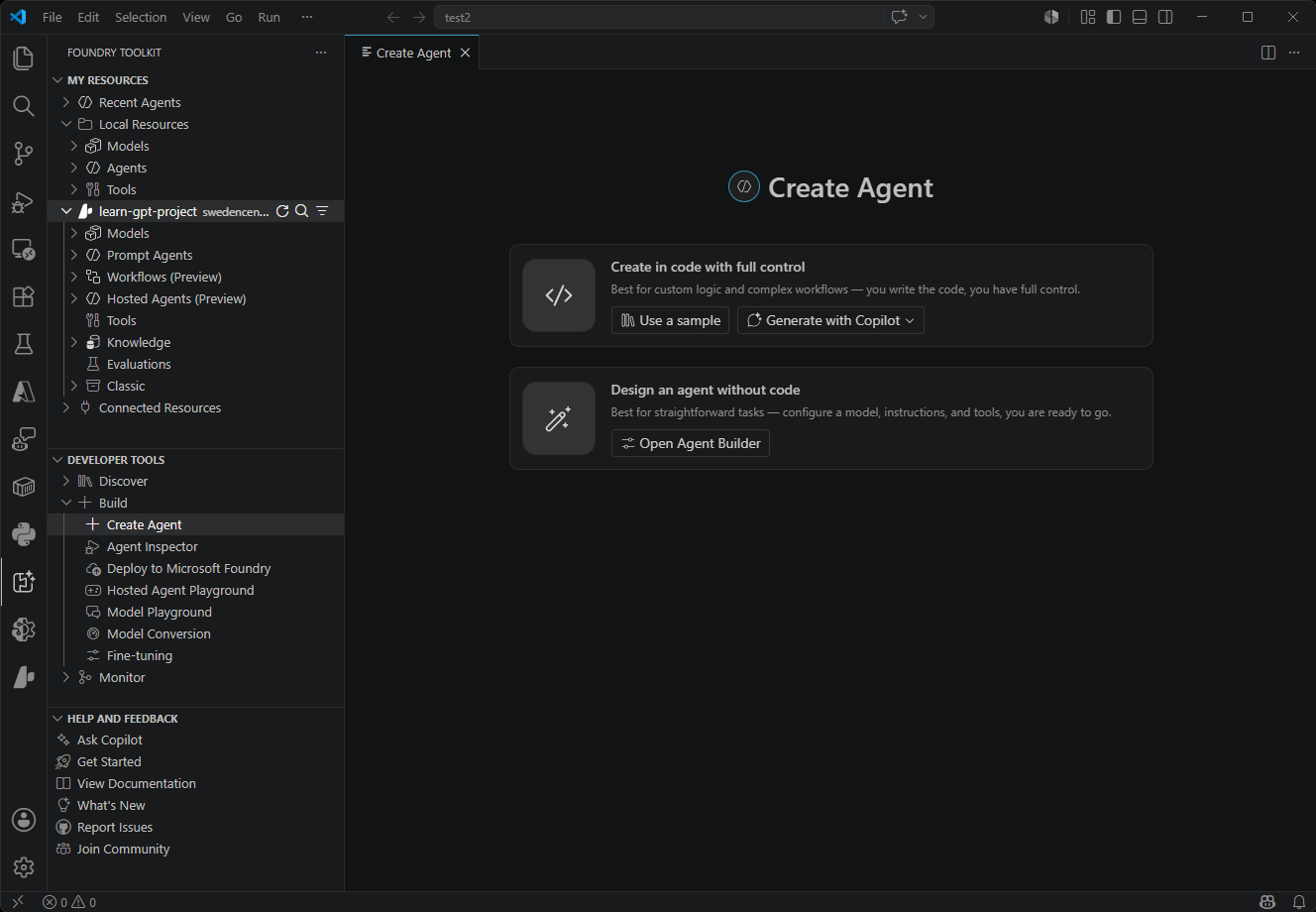 |
| Model Catalog | Discover and access AI models from multiple sources including Microsoft Foundry, Foundry Local, GitHub, ONNX, Ollama, OpenAI, Anthropic, and Google. Compare models side-by-side and find the perfect fit for your use case. |  |
| Playground | Interactive chat environment for real-time model testing. Experiment with different prompts, parameters, and multi-modal inputs including images and attachments. | 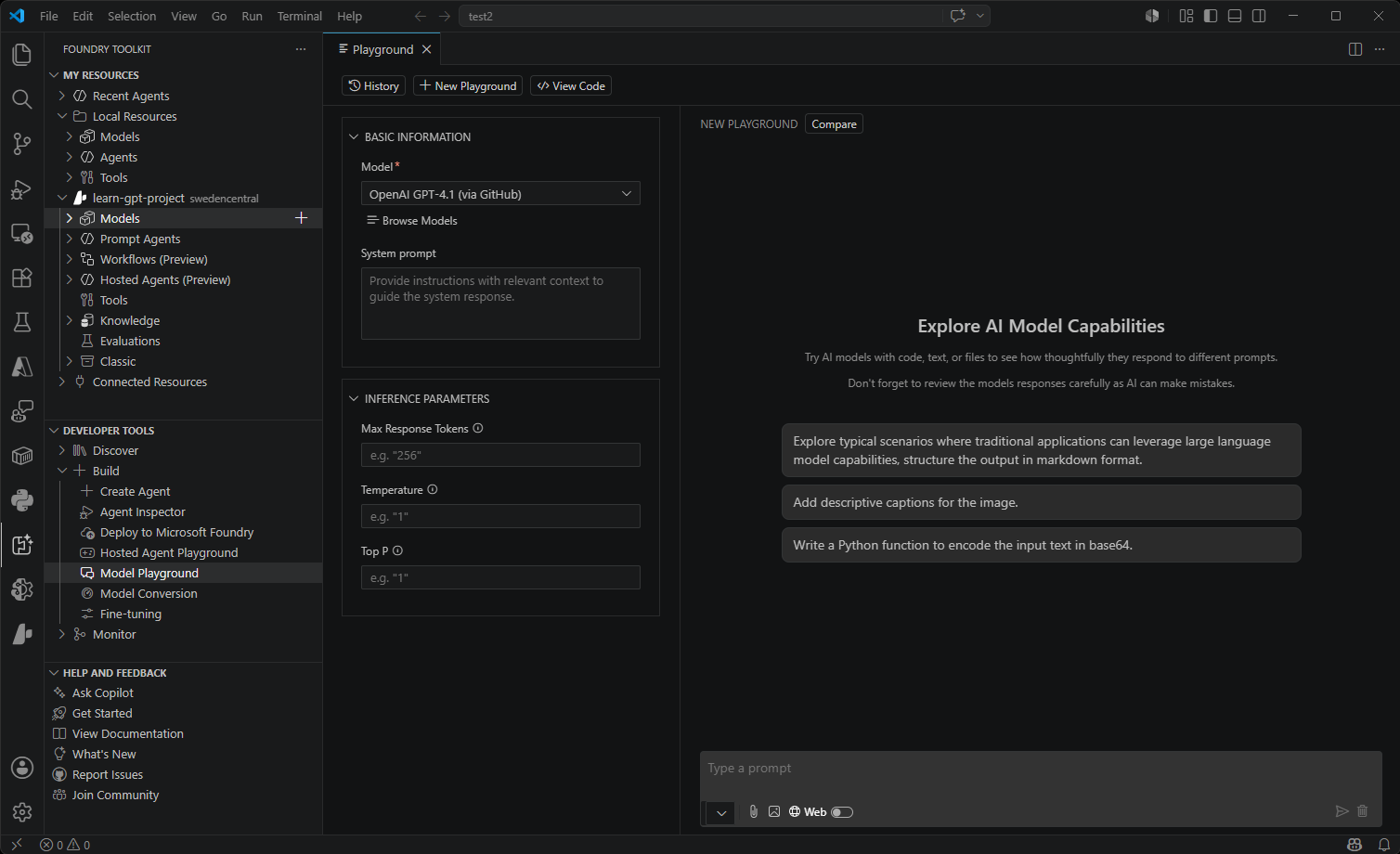 |
| Agent Builder | Streamlined prompt engineering and agent development workflow. Create sophisticated prompts, integrate MCP tools, and generate production-ready code with structured outputs. |  |
| Agent Inspector | Debug, visualize, and iterate on AI agents directly within VS Code. |  |
| Model Evaluation | Comprehensive model assessment using datasets and standard metrics. Measure performance with built-in evaluators (F1 score, relevance, similarity, coherence) or create custom evaluation criteria. | 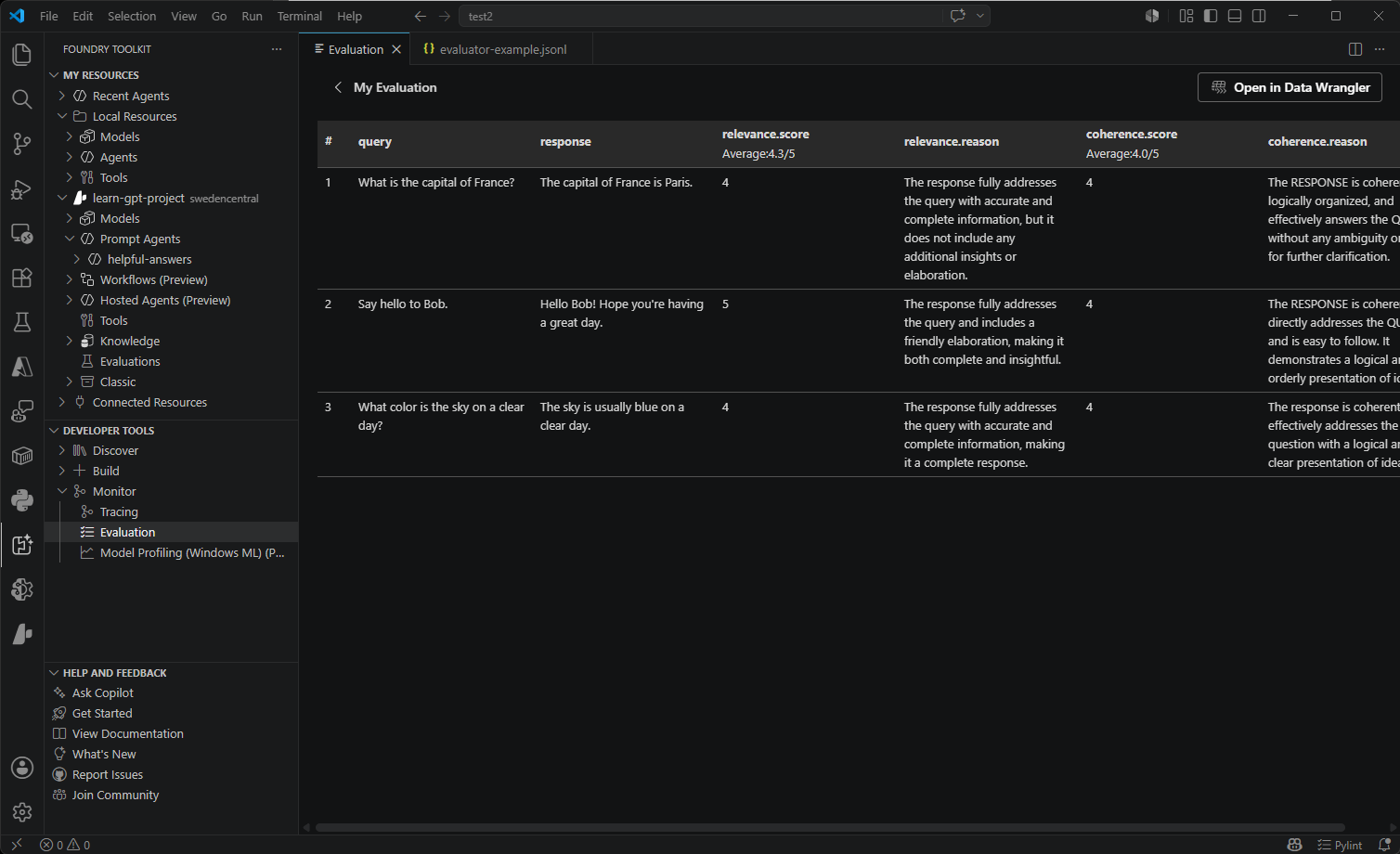 |
| Tool Catalog | Connect Foundry tools and local MCP server tools using the Tool Catalog in Visual Studio Code and add them to agents with Agent Builder |  |
| Fine-tuning | Customize and adapt models for specific domains and requirements. Train models locally with GPU support or use Azure Container Apps for cloud-based fine-tuning. | 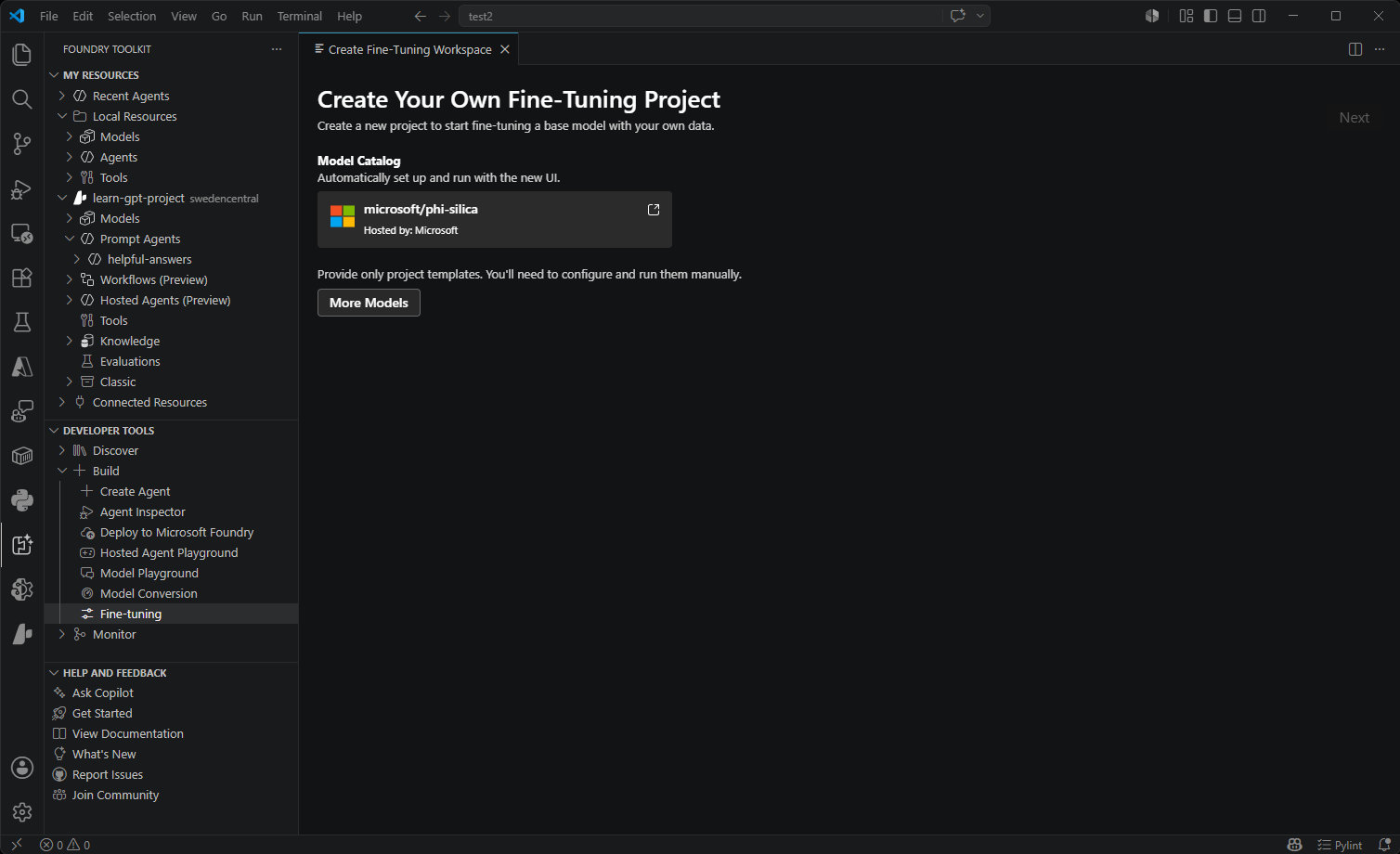 |
| Model Conversion | Convert, quantize, and optimize machine learning models for local deployment. Transform models from Hugging Face and other sources to run efficiently on Windows with CPU, GPU, or NPU acceleration. |  |
| Tracing | Monitor and analyze the performance of your AI applications. Collect and visualize trace data to gain insights into model behavior and performance. |  |
| Profiling (Windows ML) | Diagnose the CPU, GPU, NPU resource usages of the process, ONNX model on different execution providers, and Windows Machine Learning events. | 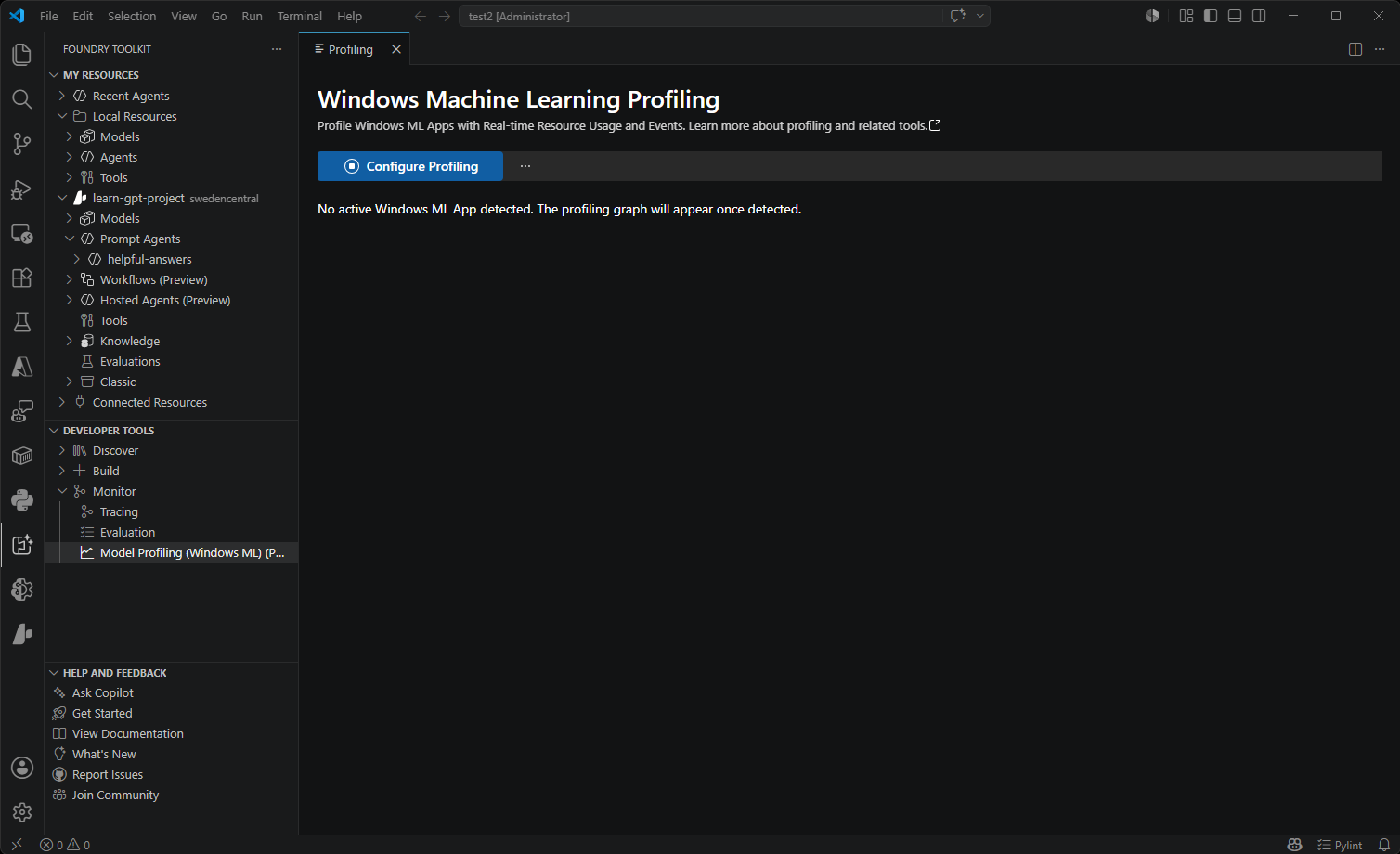 |
Who is Foundry Toolkit for?
Foundry Toolkit is designed for anyone working with generative AI, from beginners to experts:
Developers
- App developers building AI-powered applications who need to integrate language models
- Full-stack developers looking to add intelligent features to web and desktop applications
- Mobile developers prototyping AI functionality before production deployment
AI engineers & data scientists
- AI engineers fine-tuning models for specific domains and deploying to production
- Data scientists evaluating model performance and comparing different approaches
- ML engineers converting and optimizing models for efficient local deployment
Researchers and educators
- AI researchers experimenting with different models and prompt engineering techniques
- Educators teaching AI concepts and demonstrating model capabilities
- Students learning about generative AI and hands-on model interaction
Key use cases
- Explore and evaluate models from providers like Anthropic, OpenAI, and GitHub
- Run models locally using ONNX and Ollama for privacy and cost control
- Build and test agents with prompt generation and MCP tool integrations
- Convert and optimize models for deployment across different hardware configurations
Install and setup
Quick installation
The .NET Runtime should be installed as Foundry Toolkit depends on it
The fastest way to get started is by installing the extension through the Visual Studio Marketplace:
After successful installation, the Foundry Toolkit icon appears in the Activity Bar.
Manual installation
You can also install Foundry Toolkit extension manually from the Visual Studio Code Marketplace. Follow the steps detailed in Install an extension.
Alternatively, select the Extensions icon in the Activity Bar.
-
Search for Foundry Toolkit for Visual Studio Code and select Install from search results.

Check the What's New page after installation to see detailed features for each version.
- After successful installation, the Foundry Toolkit icon appears in the Activity Bar.
Verifying and Installing Foundry Toolkit Pre-Requisites (Local Models)
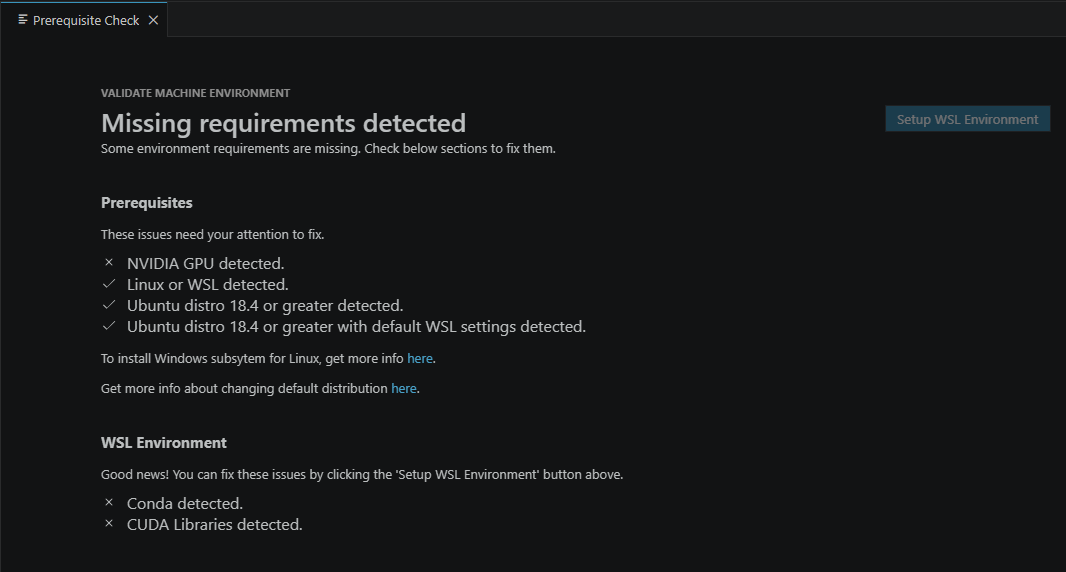
Foundry Toolkit provides local LLM running capabilities via Foundry Local, complete the Foundry local setup by running the Foundry Toolkit: Install environment prerequisites command to leverage these capabilities.
You can verify pre-requisites installation status with the Foundry Toolkit: Validate environment prerequisites Command:
Explore Foundry Toolkit
Foundry Toolkit includes the Foundry sidebar directly, so you manage your Microsoft Foundry resources and Foundry Toolkit features in one place.
The Foundry sidebar retires on June 1, 2026. All Foundry sidebar features are now available in the Foundry Toolkit sidebar.
Foundry Toolkit opens in its own view, with the Foundry Toolkit icon displayed on the VS Code Activity Bar. The extension has three main sections: My Resources, Developer Tools, and Help and Feedback.