Introduction
At the end of August 2025, I decided to replace the 2016 Dell Inspiron 3847 tower that I had been using as a web server to something newer, a Dell EBT2250 Tower Plus desktop. The price has increased, I bought the computer for $1,259.99, which after tax of $88.18, brought the price I paid up to $1,348.17
The Dell Tower Plus EBT2250 owner's manual can be found on the Dell website.
This page looks at why and how I upgraded the server.
Why Upgrade
Windows 10 support ends on October 14, 2025 and by the end of August 2025, I ran the Microsoft PC Health application.
The results of the application showed that although the computer had been upgraded over the years, it could not run Windows 11.

PC Health result
Possible Solutions
I could install Linux, I've used Apache on Fedora before and got on well with it. The problem is that the batch files, scripts and other utilites I have written over the years to make my life a little easier will have to be rewritten.
To install Windows 11, I could:
1) Do Nothing
Do nothing and hope Windows 10 does not come under attack in the future.
As the computer is a public facing web server this seems too risky.
2) Upgrade the Motherboard and CPU
The Intel Core i5-4460 CPU @ 3.20GHz in the Dell Inspiron 3847 uses a FCLGA1150 socket. As far as I know, no CPU that fits the socket is Windows 11 compatible. The CPUs for this socket are either Haswell (4th generation) or Broadwell (5th generation) CPUs, Windows 11 requires at least an 8th generation CPU.
The Trusted Platform Module (TPM) 2.0 module was introduced in 2019, so my 2016 machine is not going to have the hardware for it. This will mean a complete rebuild which seems far more work than I want to put into it.
3) Use Rufus
Rufus is a utility that helps format and create bootable USB flash drives. During installation of Windows 11, it asks if you want to bypass the Trusted Platform Module (TPM) check. Several sites, such as this one, have the instuctions for installing Windows 11 via Rufus.
4) Buy a New Computer
This seems the quickest way of replacing the server, even though it is not the cheapest. In the end I chose this method and looking around chose a Dell EBT2250 Tower Plus desktop. The price has increased, I bought the computer for $1,259.99, which after tax of $88.18, brought the price I paid up to $1,348.17
Server Comparison
Self-hosted web servers do not need to be powerful machines, but when I buy a new PC, I usually go for something a bit more powerful than I actually need.
| Property | Dell Inspiron 3847 (old) | Dell EBT2250 (new) |
|---|---|---|
| CPU | Intel Core i5-4460 (4 core, 6Mb cache) 3.20GHz (4th Generation, Haswell, 2014) | Intel Core Ultra 7 265K (20-Core, 66MB Total Cache) 3.3GHz to 5.5GHz (13th Generation, Arrow Lake, 2024) |
| RAM | 16 Gb DDR3 | 32 Gb DDR5 |
| Drive | 1Tb 860 EVO SSD | 1Tb M.2 PCIe NVMe SSD |
| Graphics | Intel HD Graphics 4600 (113 MB) | Intel UHD Graphics |
Setting Up

Dell EBT2250
When the new Dell arrived, I was reminded of the Douglas Adams quote from The Restaurant At The End Of The Universe - "Every time you try and operate these weird black controls that are labeled in black on a black background, a little black light lights up in black to let you know you've done it."
Deleting Initial Software
As soon as I turned the computer on, I checked which programs were running at startup by using the article Configure Startup Applications in Windows on Microsoft Learn. I also checked all the programs that were installed on the computer.
After removing the entries from the places in the Microsoft Learn article, I deleted the following apps from the Apps > Installed Apps menu:
McAfee
One Drive
Weather
Xbox
Installing Software
I installed the latest editions of the following software:
Log Parser 2.2
Log Parser Studio
Microsoft Office
PowerShell 7.5
PowerShell for Visual Studio Code
Strawberry Perl
Visual Studio Code
Xenu's Link Sleuth
Monitor Mea Culpa
One thing I forgot to check when I ordered the new Dell was the video connections it has and its compatibility with the monitors I already have. The monitor I used with the old server was an HANNS-G 19" model that has VGA and DVI-D inputs. However, the Dell EBT2250 only has an HDMI output.
In the end, I purchased a Dell ST2220L 21.5" widescreen monitor for $100. It has VGA, DVI and HDMI inputs.
Windows 11 Recovery Drive
I downloaded the Windows 11 Media Creation Tool and created a Windows 11 installation USB drive.
Start Button and Power Management
The power button function was checked in Windows and set to send the PC to sleep rather than turn it off when pressed.
In Windows Power Management The current sleep settings were set to: Screen - Sleep after 5 mins; Device - Sleep never. This is because the server needs to be accessible 24 hours a day.

Server access, August 2025
Image from AWStats logging program
Edge Browser
I like Microsoft's Edge browser, but prefer Google as the search engine over Bing.
The search engine was changed to Google by using Microsft's Support instructions.
The home page changed to Google as well, again by using Microsft's Support instructions.
Apache HTTP Server
The Windows version of the Apache HTTP Server version 2.4.65, was downloaded and installed from Apache Lounge. This version of Apache also requires the use of Microsoft Visual C++ Redistributable which was also downloaded and installed.
The download updated Apache from version 2.4.54 to 2.4.65 and OpenSSL from 1.1.1 to 3.5.1
httpd.exe was run from the Apache24\bin\ directory which starts Apache as a console application and got the webpage "It works!" on http://127.0.0.1/ in the Edge browser. This is the default index.html file in the Apache24\htdocs directory.

The default Apache page
Using a backup I made, the website files were copied from the current server to the new Dell and so were the Apache configuration files that were different from the orginals - ie the files that I had edited on the old server.

The new index.htm file
In order to view the website once the http service is running using the website names, the hosts file in Windows\System32\drivers\etc had to be edited. This is a system file and so has to be opened in an editor with administrator privileges. The following line was added to the file and then saved:
127.0.0.1 localhost brisray.com hmsgambia.org ihor4x4.com thebristolgunners.org 266btygva.org bristolgunners.org
SSL Certificates
I use Certbot to obtain the SSL cerficates from Let's Encrypt. A problem is that after version 2.9.0 in February 2024, they stopped making a Windows version.
As it still works, I downloaded and installed version 2.9.0 on the new server. The instalation creates a new task in Task Scheduler, but as that has never worked for me, I deleted that and copied the script I wrote and the task from the old server to the new using Task Scheduler's export and import functions.
The Certbot files and certificates are kept in their own folder and this was copied from the backups to the new server. The certificates are tied to the domain ames and not the actual PC they are on, so the PEM (Privacy-enhanced Electronic Mail) files should still work.
I ran the command:
certbot certificates
Certbot returned an error that said:
Renewal configuration file produced an unexpected error: expected the pem file to be a symlink. Skipping.
The renewal configuration was invalid.
I looked at several solutions online about how to repair the symlinks but nothing worked. In the end I deleted the entire c:/certbot directory. I ran a command prompt as administrator and typed:
certbot certonly --standalone
The program then asked for the names of the domains that needed certicificates so I entered:
brisray.com, www.brisray.com, hmsgambia.org, www.hmsgambia.org, ihor4x4.com www.ihor4x4.com, bristolgunners.org, www.bristolgunners.org
Once the certifcates had been obtained, I typed:
certbot certificates
That command gave me details about the certifcates and said they were valid for 89 days, showing me that they were new.
Certbot had also warned me that a new task to renew them had been made. As that had never worked before, I deleted it from the Task Scheduler.
If Certbot stops working then I shall use one of the newer Windows ACME (Automatic Certificate Management Environment) clients.
Apache Logs, Analyzers, Scripts, and Task Scheduler
From the backup I made, Apache's log files were copied to the new server.
I use several log analyzers, Analog, AWStats and Webalizer. Analog was updated from version 6.0.17 to 6.0.18. AWStats was updated from version 7.9 to 8.0, and Webalizer from version 6.2.1 to 6.3.
As these programs are either scripts or a single exe file, updating them was just a matter of copying the old files from the backup and overwriting them with the newly downloaded files in the same folders.
I have written several batch files and PowerShell scripts to help me manage the server. The scripts help with doing the backups, splitting the Apache log files by month, updating the SSL certificates, and running the analyzer programs. These were simply copied from the old server to the new using the backup I made.
The Task Scheduler entries were exported as xml files from the old server to the new and they work.
Starting the Server
Once all of the above had been done, the Apache server could be started as a service by opening a command prompt and typing:
http -k start
Making the Server Public
With the Apache service started and running it was time to make it public. I have a Spectrum SAX1V1S WiFi 6 Router and the interface for that is mobile only. I opened the Spectrum app and went to the router page, then scrolled down to the Port Forwarding and IP Reservations and turned off the Reserve IP Adress switch for the old router and turned it on for the new and port forwadred the http (port 80) and https (port 443) ports to it.

Turning on port forwarding on the router app for the new server
As I had already taken care of most of the preparations, the server was offline for maybe 10 minutes while I altered the settings of the router.
I then used the following utilities to ensure the new server was public. For a simple site test there are places like Check Website Availability, Down for Everyone or Just Me, Freshping, Is It Down Right Now, and Is Website Down for Everyone. To see what an individual page looks like then there are services such as GeoPeeker, LocaBrowser, and WebPageTest.
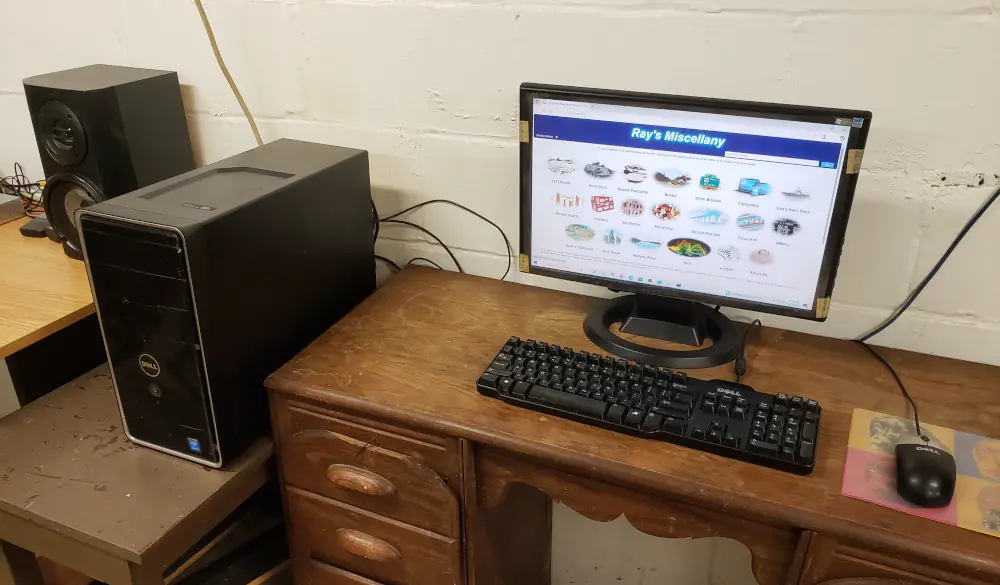
The old "Server in the Cellar" just before being turned off on September 29, 2025
The Dell Inspiron 3847 was first turned on January 16, 2016, and has been working continuously ever since

The new "Server in the Cellar" just after being turned on, on September 29, 2025
I hope the Dell EBT2250 Tower Plus does as well as the old Dell Inspiron 3847
Bitvise SSH Server
The Bitvise SSH Server was downloaded and installed. An unexpected problem was the message that:
This module is blocked from loading into the local Security Authority: Windows\System32\BvLsaEx.dll

Windows LSA, Bitvise BvLsaEx.dll error message
This is a problem known to Bitvise, as Q370 in their FAQ. Their solutions can be found on the Microsoft Learn page, Configure added LSA protection.
The Bitvise SSH Server dashboard has a settings section that allows the export and import of the program's settings. I exported the old settings from the old server as a wst file and imported that into the new server.

The Bitvise SSH Server dashboard settings menu
I updated the Bitvise SSH Server's Client address rules to reject any attempt to login outside of my network's IP address range.
I can now SSH (Secure Shell) files from my othr computers into the server using WinSCP.
The LSA warning message still appears whenever the computer is restarted, but it is easily hidden and does not affect my transfering files.
OneDrive
I had a look around on the computer and found that not all traces of OneDrive had gone by uninstalling it. I found my Documents and Pictures folders were still in the OneDrive folder in my Windows user account. To put them back where they belong, I followed the instructions given in a Reddit article. This method worked.
Dynamic DNS
I have been using DNSExit to manage my DNS records since July 2011. Using their guide, I created a batch file to run a curl command to update the records whenever my external IP address changes. I run this as a task in Task Scheduler to run every hour, but my external IP address does not change very often.
DNSExit has a DNS API to help with updating the DNS records. What I wanted to do was create a log file of the results of the updater but the API doesn't mention is at all.
What I could use is:
echo %date% %time% >> c:/DNS-update-output.txt
curl https://api.dnsexit.com/dns/ud/?apikey=[API-Key] -d host=[hostname1,hostname2] | findstr /B "{" >> c:\DNS-update-output.txt
The %date% writes the date to the file, and %time% writes the time. The JSON file returned by DNSExit has four blank lines followed by {"code" : 0, "message" : "Success - some details about the update"}. The part of the batch file that is | findstr /B "{" looks for lines that begin with { and just outputs that line to the batch file, ignoring the empty lines.
The lines written to the batch file are:
Fri 10/03/2025 0:32:24.41
{"code":1,"message":"IP not changed - [IP address]"}
It could also return other codes and messages if there is a problem.
I could have added -H "Accept: application/json" or simply -H after the curl command to get the JSON file returned by DNSExit but all I really needed was the text.
I was hoping to write a batch file to check my own external IP address and only contact DNSExit when it changes but it seems impossible ot get the external IP address when you are "inside" a home network. I did find some sites that return just the IP address, but it seems overkill to keep querying them and then DNSExit.
Here are some IP address checkers I found that only return the IP addresses
IP4 Addresses
amazonaws, ident, and ipparrot