
The SQL Server SELECT statement retrieves data from one or more tables in a database. This statement returns a result set in a tabular format with columns as headings and the rows in each column. If the table has any records, we must use the SELECT statement (the only option) to retrieve those rows. In this article, we will show how to write a SELECT statement with multiple examples.
We can use the SELECT statement to display all records (rows and columns), a specific set of columns, or a few rows. Although the syntax section covers multiple ways to use the SQL SELECT statement, the basic (common) one is to use SELECT and the FROM clause. Within the two, the server will first execute the FROM clause and then the SELECT statement. Apart from the basic selection, the SELECT statement supports sorting, filtering data, joining tables, grouping, and so on.
SQL SELECT Statement Syntax
The basic syntax of the SELECT statement to return all the records present in the table is as shown below.
SELECT column1, column2,…, columnN
FROM Source
From the above SQL SELECT Statement syntax,
- The FROM clause specifies from which the data should be retrieved.
- The SELECT clause specifies the server that you want to display the total number of columns as the result set.
- column1, column2,…, column: Please specify the required column names from the source table. The result set will display the columns mentioned here. If you use *, it displays all the columns in a table.
- Source: It is the table name from which we select the columns. Although we have mentioned Source as a single table, we can use JOINS to pick data from multiple database tables
When we execute the SQL SELECT statement, the server first evaluates the FROM clause to identify the tables. Next, it evaluates the SELECT clause and picks the columns.
In addition to the above syntax, we can use the
- WHERE clause to filter the data,
- ORDER BY clause to sort the data in ascending or descending.
- TOP clause to choose only a few top records.
- GROUP BY with aggregations, HAVING, etc.
SQL SELECT Statement Examples
This section covers a series of examples on the SELECT statement with all possible combinations. Before getting into the real table examples, we show a few simple ones to understand the syntax.
Apart from using table names, we can use the SELECT statement to directly display the information, messages, mathematical calculations, and so on as output. For instance, the following queries use direct values instead of column names.
SELECT 10;
SELECT 20 + 50 AS adding;
SELECT 70 - 30 AS sub;
-----------
10

adding
-----------
70

sub
-----------
40
To demonstrate the possible options, we use available tables from the default [AdventureWorks2022].
SQL SELECT All Columns Statement
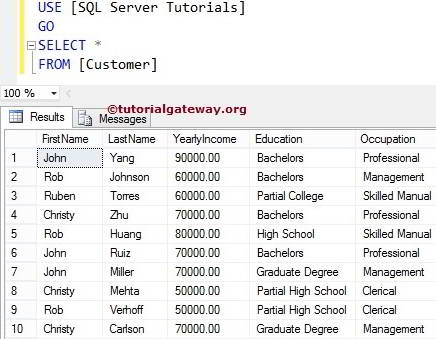
In the SELECT statement, * (asterisk ) is a shortcut to represent all the available columns in the source tables. To display all the records (rows and columns) in a table, use this SELECT * FROM statement.
In this example, we choose all the columns present in the ProductCategory table using an asterisk (*).
SELECT *
  FROM [Production].[ProductCategory]
The above query displays four rows and four columns.
ProductCategoryID	Name	rowguid	ModifiedDate
1	Bikes	CFBDA25C-DF71-47A7-B81B-64EE161AA37C	2008-04-30 00:00:00.000
2	Components	C657828D-D808-4ABA-91A3-AF2CE02300E9	2008-04-30 00:00:00.000
3	Clothing	10A7C342-CA82-48D4-8A38-46A2EB089B74	2008-04-30 00:00:00.000
4	Accessories	2BE3BE36-D9A2-4EEE-B593-ED895D97C2A6	2008-04-30 00:00:00.000
Problems with the SQL SELECT * FROM Statement
- The SELECT * FROM statement will retrieve all the columns from the Table. Most of the time, we do not require all the columns in a table. So, please avoid using * for choosing all column names.
- The SELECT * FROM will pick the columns in the default order. Sometimes we may need to change the order of the columns while displaying them.
- If there are any changes made in the underlying table (reordering Columns, removing or adding them), it won’t reflect the views created using SELECT *.
So, please don’t use the SQL SELECT * FROM statement in real-time, even to retrieve all the columns present in a table.
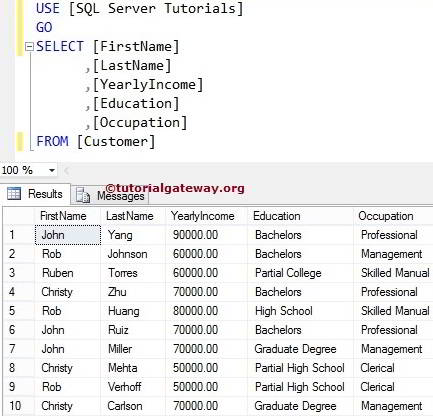
The second approach is to place all the column names after the SELECT keyword. By this, you can rearrange the column name and improve the performance. For instance, the following query is the same as the above query.
SELECT [ProductCategoryID],[Name]
      ,[rowguid],[ModifiedDate]
FROM [Production].[ProductCategory]
SQL SELECT a few Columns statement
In real-time, placing all the columns in a table is not the case. There will be some columns that may not be required for that particular case. So, you can restrict them in this SELECT statement. For example, if you observe the above result set, in most cases, we may not need the [rowguid] and[ModifiedDate] columns.
To avoid these unnecessary columns, the SELECT statement allows us to choose specific columns from the tables by placing the required column names, followed by a SELECT keyword.
SELECT [ProductCategoryID],[Name]
FROM [Production].[ProductCategory]
ORDER BY [ProductCategoryID]
ProductCategoryID	Name
1	Bikes
2	Components
3	Clothing
4	Accessories
NOTE: If we forget the comma between the columns, then SQL Server assumes the second column as the ALIAS name for the first one. So, please be careful. When you add a comma after the last column, it will throw an error.
ALIAS Column Names
When selecting the required column names from a source table, we can use the ALIAS (temporary) column names to display in the result set. It helps to provide more meaningful or formatted names. For instance, the SQL SELECT statement query below uses an alias to rename the ProductCategoryID AS CategoryID and [Name] AS CategoryName. It is helpful when performing the calculations.
SELECT [ProductCategoryID] AS CategoryID,
[Name] AS CategoryName
FROM [Production].[ProductCategory]
CategoryID	CategoryName
4	Accessories
1	Bikes
3	Clothing
2	Components
SQL SELECT Statement with ORDER BY clause
When you combine the SELECT statement with the ORDER BY clause, you can sort the table data in ascending or descending order. For instance, the query above alphabetically displays the records based on the CategoryName. However, you can use the ORDER BY clause to sort the data based on your own field. The query below uses the CategoryID to sort the result set in ascending order.
SELECT [ProductCategoryID] AS CategoryID,
[Name] AS CategoryName
FROM [Production].[ProductCategory]
ORDER BY [ProductCategoryID] ASC
CategoryID	CategoryName
1	Bikes
2	Components
3	Clothing
4	Accessories
SQL SELECT Statement with TOP clause
By default, the SELECT statement returns all the available records in a source table. However, the TOP clause helps to pick the top N rows or the percentage of rows as the result set.
As we all know, there are 290 employees in the [HumanResources].[Employee] table. The query below selects only the TOP 4 rows from those 290.
SELECT TOP 4 [BusinessEntityID],[NationalIDNumber]
      ,[JobTitle] ,[BirthDate],[MaritalStatus]
      ,[Gender] ,[HireDate]
  FROM [HumanResources].[Employee]
Similarly, use the query below to display the TOP 1 PERCENT of the 290 rows. Here, the ORDER BY clause sorts the employees using the BirthDate in ascending order. Next, the SELECT statement picks the 1 per cent rows.
SELECT TOP 1 PERCENT [BusinessEntityID],[NationalIDNumber]
      ,[JobTitle],[BirthDate],[MaritalStatus] ,[Gender] ,[HireDate]
  FROM [HumanResources].[Employee]
  ORDER BY BirthDate
BusinessEntityID	NationalIDNumber	JobTitle	BirthDate	MaritalStatus	Gender	HireDate
274	502097814	North American Sales Manager	1951-10-17	M	M	2011-01-04
84	947029962	Production Technician - WC40	1952-03-02	M	M	2010-02-05
256	367453993	Buyer	1952-05-12	M	M	2010-01-23
SQL SELECT Statement with the DISTINCT keyword
The combination of the SELECT statement with the DISTINCT keyword returns the unique records from a specific column. In the Department table, there are 16 records. However, we only need the unique Group Names from that table. In such a case, use the query below.
SELECT DISTINCT [GroupName]
FROM [HumanResources].[Department]
GroupName
Executive General and Administration
Inventory Management
Manufacturing
Quality Assurance
Research and Development
Sales and Marketing
NOTE: If you remove the DISTINCT keyword from the above query, it returns 16 records (including duplicates). Here, the six unique records are repeated as per the ID value.
Performing Mathematical Calculations
The SQL SELECT statement not only extracts the existing columns as they are, but is also helpful for performing string or mathematical operations. For example, string concatenation (joining firstname and lastname) or adding two column values, and so on. The query below will subtract last year’s sales from the current year to see the difference. As there are 17 rows in the table. We selected the first five of them as the result set.
SELECT TOP 5 [BusinessEntityID],[SalesYTD],[SalesLastYear]
      ,SalesYTD - SalesLastYear AS Difference
FROM [AdventureWorks2022].[Sales].[SalesPerson]
Additionally, you can subtract the actual product cost from the sales amount to determine the difference. Otherwise, multiply the order quantity by the product cost to see the total order value for each customer, and so on.
SQL SELECT Statement with WHERE clause
As we mentioned earlier, the SELECT statement returns all rows from the source table. However, we can use the WHERE clause to apply a filter on the selected rows. For example, sales in a particular period, employees in a specific department, and so on.
The query below returns all employees from the Employee table whose Job Title is ‘Janitor’.
SELECT  [BusinessEntityID],[NationalIDNumber]
      ,[JobTitle] ,[BirthDate],[MaritalStatus],[Gender],[HireDate]
 FROM [HumanResources].[Employee]
  WHERE JobTitle = 'Janitor'
Similarly, the query below selects all Male employees who are unmarried (Single) and born after the year 1990.
SELECT  [BusinessEntityID],[NationalIDNumber]
     ,[JobTitle] ,[BirthDate],[MaritalStatus],[Gender],[HireDate]
FROM [HumanResources].[Employee]
WHERE Gender = 'M' AND MaritalStatus = 'S'
  AND YEAR(BirthDate) > '1990'
ORDER BY BirthDate
Using the LIKE Operator
When using the WHERE clause, the LIKE operator plays a vital role. If you combine the SQL SELECT statement with the LIKE operator, it performs the wildcard searches on the table data. There are various wildcards that we can use, and we have already explained them in the LIKE Wildcard article.
For instance, the query below selects all the customers available in the DimCustomer table. The LIKE operator tests whether the First Name starts with J and the Last Name starts with A and ends with r. If both conditions are TRUE, the SELECT statement displays those records.
SELECT [FirstName],[LastName] ,[BirthDate]
      ,[MaritalStatus],[Gender] ,[YearlyIncome]
      ,[EnglishEducation] ,[EnglishOccupation]
  FROM [DimCustomer]
 WHERE FirstName LIKE 'J%' AND LastName LIKE 'Ar%r'
SQL SELECT Statement with JOIN Clause
In any normalised database, it is impossible to pick the required columns from a single table. As the data is usually stored in multiple tables, we mostly select the required columns from multiple tables. In SQL Server, various joins are available to combine tables, and we have already explained them in detail.
In the AdventureWorksDW database, the DimCustomers table stores customer’s details, whereas the DimGeography holds the postal code, city, state, and country details. To fetch the complete information, we must use any of the available joins to combine these two tables. Here, we used an INNER JOIN using the common field. As there are many rows, we used the WHERE clause to filter them and show only the customers who were born after ‘1986-06-15’.
SELECT [FirstName],[LastName],[BirthDate]
      ,[Gender] ,[YearlyIncome],[City] ,[EnglishCountryRegionName]
  FROM [AdventureWorksDW2022].[dbo].[DimCustomer]
  JOIN DimGeography ON
  DimCustomer.GeographyKey = DimGeography.GeographyKey
  WHERE BirthDate > '1986-06-15'
TIP: Use the UNION and UNION ALL to combine or merge data from two tables.
SQL SELECT Statement with GROUP BY Clause
When you combine the SELECT statement with the GROUP BY clause, it combines the identical rows into a single group. Next, the aggregate functions will perform mathematical operations on the numeric columns.
The query below combines the DimSalesTerritory and FactInternetSales tables and groups the sales information by SalesTerritoryGroup. Next, the AVG and SUM functions find the total order, sales, and the average sales in each group.
SELECT s.[SalesTerritoryGroup],
	SUM(f.OrderQuantity) AS Orders,
	SUM(f.SalesAmount) TotalSales,
	AVG(f.SalesAmount) AverageSales
FROM [DimSalesTerritory] s
JOIN [FactInternetSales] f
ON s.SalesTerritoryKey = f.SalesTerritoryKey
GROUP BY s.SalesTerritoryGroup
SalesTerritoryGroup	Orders	TotalSales	AverageSales
Europe	18089	8930042.2634	493.6725
North America	28964	11367634.3729	392.4746
Pacific	13345	9061000.5844	678.9809
Using the HAVING clause
Once we perform the grouping and aggregations in the SQL SELECT statement, we can use the HAVING clause to filter the grouped and aggregated data. The query below is the same as the GROUP BY example. However, we added an extra line, HAVING AVG(f.SalesAmount) > 430. It means the HAVING clause added a filter checking whether the average sales amount is greater than 430. If TRUE, add that record to the SELECT statement result set.
SELECT s.[SalesTerritoryGroup],s.[SalesTerritoryCountry],
	SUM(f.OrderQuantity) AS Orders,
	SUM(f.SalesAmount) TotalSales,
	AVG(f.SalesAmount) AverageSales
FROM [DimSalesTerritory] s
JOIN [FactInternetSales] f
ON s.SalesTerritoryKey = f.SalesTerritoryKey
GROUP BY s.SalesTerritoryGroup, s.[SalesTerritoryCountry]
HAVING AVG(f.SalesAmount) > 430
ORDER BY SalesTerritoryGroup
SQL SELECT Statement with Subquery
The SELECT statement also allows the use of subqueries and correlated subqueries to perform more complex operations. The following query selects the persons whose sales year to date are greater than the average sales. Here, the subquery finds the average of the table. Next, the main query compares each person’s SalesYTD against the average, and if it is greater than the average, selects that person.
SELECT s.BusinessEntityID,
    p.FirstName + ' ' + p.LastName AS SalesPerson,
    s.SalesYTD
FROM Sales.SalesPerson s JOIN Person.Person p
ON s.BusinessEntityID = p.BusinessEntityID
WHERE s.SalesYTD >
(SELECT AVG(SalesYTD) FROM Sales.SalesPerson);
BusinessEntityID	SalesPerson	SalesYTD
275	Michael Blythe	3763178.1787
276	Linda Mitchell	4251368.5497
277	Jillian Carson	3189418.3662
279	Tsvi Reiter	2315185.611
281	Shu Ito	2458535.6169
282	José Saraiva	2604540.7172
289	Jae Pak	4116871.2277
290	Ranjit Varkey Chudukatil	3121616.3202
Using the CASE
The SQL SELECT statement also allows you to use the CASE functionality to apply the conditional logic or columns. For instance, display a particular message or mathematical calculation when a certain condition is met, etc. The following CASE query displays a Good or Bad message based on Last year’s and this year’s sales. If this year’s sales are greater than last year’s, Good; otherwise, bad.
As there are 17 rows, for the sake of convenience, we chose the top 8 records.
SELECT TOP 8 s.BusinessEntityID,
    p.FirstName + ' ' + p.LastName AS SalesPerson,
    s.SalesYTD, s.SalesLastYear,
    CASE
    WHEN s.SalesYTD > s.SalesLastYear THEN 'Good'
    ELSE 'Bad Performance'
    END AS Message
FROM Sales.SalesPerson s JOIN Person.Person p
ON s.BusinessEntityID = p.BusinessEntityID
BusinessEntityID	SalesPerson	SalesYTD	SalesLastYear	Message
274	Stephen Jiang	559697.5639	0.00	Good
275	Michael Blythe	3763178.1787	1750406.4785	Good
276	Linda Mitchell	4251368.5497	1439156.0291	Good
277	Jillian Carson	3189418.3662	1997186.2037	Good
278	Garrett Vargas	1453719.4653	1620276.8966	Bad Performance
279	Tsvi Reiter	2315185.611	1849640.9418	Good
280	Pamela Ansman-Wolfe	1352577.1325	1927059.178	Bad Performance
281	Shu Ito	2458535.6169	2073505.9999	Good
Working with NULL Values
In any table, NULL values are very common, and by default, the SQL SELECT statement picks them as they are. However, you can use the WHERE clause to filter the NULL values from the result set. Otherwise, use the COALESCE function to replace the NULL value with a default or meaningful text. The query below selects the persons whose Title and Suffix column values are NOT NULL. Next, the COALESCE function replaces the NULL value in MiddleName with ‘TG’. It displays 48 rows, so please use the query to see the result set.
SELECT  [BusinessEntityID] ,[PersonType],[NameStyle]
      ,[Title] ,[FirstName]
      ,COALESCE([MiddleName], 'TG.') AS MiddleName
      ,[LastName],[Suffix]
  FROM [Person].[Person]
  WHERE Suffix IS NOT NULL AND Title IS NOT NULL
SQL SELECT INTO Statement
In all the above-mentioned examples, we used the SELECT statement to display the records in a single or multiple tables. However, if you use the SELECT statement with the combination of the INTO clause, you can create a new table and insert records into it.
To demonstrate the same, we use the SELECT INTO statement with GROUP BY and insert the result set into the local temporary table.
USE tempdb
GO
IF OBJECT_ID(N'#TerritorySales') IS NOT NULL
DROP TABLE #TerritorySales
GO
SELECT s.[SalesTerritoryGroup],
	SUM(f.OrderQuantity) AS Orders,
	SUM(f.SalesAmount) TotalSales,
	AVG(f.SalesAmount) AverageSales
INTO #TerritorySales
FROM AdventureWorksDW2022.dbo.[DimSalesTerritory] s
JOIN AdventureWorksDW2022.dbo.[FactInternetSales] f
ON s.SalesTerritoryKey = f.SalesTerritoryKey
GROUP BY s.SalesTerritoryGroup

SELECT * FROM #TerritorySales
SalesTerritoryGroup	Orders	TotalSales	AverageSales
Europe	18089	8930042.2634	493.6725
North America	28964	11367634.3729	392.4746
Pacific	13345	9061000.5844	678.9809
SQL SELECT Statement using Management Studio
Within the Management Studio, navigate to the required Database and then pick the required Table. Right-click on the Table will open the Context Menu with different options.
From the context menu, we must choose the SELECT Top 1000 Rows Option. This option auto-generates the SELECT Statement for us. To see all the records, remove the TOP Clause (Top 1000) from the auto-generated statement.
SQL SELECT Statement Best Practices
- Always avoid SELECT * FROM to avoid the performance bottleneck.
- Within the SELECT statement, always choose the required columns and avoid the unnecessary columns.
- Use the DISTINCT keyword to select the unique records.
- Use the Column ALIAS names to set the column headers more readable and meaningful.
- When joining multiple tables, use the Table Alias names to avoid ambiguous column name errors.
- Use the WHERE clause to restrict the total number of rows.
- Use Index columns in the WHERE clause to improve the query performance.
- The ORDER BY clause help to sort the incoming data in ascending or descending order.
- The TOP clause allows you to pick the top N or percent rows.
- There are CAST and CONVERT functions that we can use in the SQL SELECT statement to change the data type of the selected columns. For instance, SELECT CAST(YearlyIncome AS VARCHAR(50)) AS StringIncome;