Summary: In this tutorial, you’ll learn how to use multiple threads in Tkinter applications to make them more responsive.
When to use Tkinter with Threads #
Let’s start with a simple program:
import tkinter as tk
from tkinter import ttk
import time


def task():
    # Simulate a long-running task
    for i in range(5):
        print(f"Task running... {i+1}/5")
        time.sleep(1)

    print("Task completed!")

root = tk.Tk()
root.geometry("300x100")
root.title("Tkinter Thread Example")

button = ttk.Button(root, text="Start Thread", command=task)
button.pack(pady=10)

root.mainloop()Code language: Python (python)
How it works.
First, define the task() function that takes 5 seconds to finish:
def task():
    # Simulate a long-running task
    for i in range(5):
        print(f"Task running... {i+1}/5")
        time.sleep(1)

    print("Task completed!")Code language: Python (python)
Second, create a main window with a button:
root = tk.Tk()
root.geometry("300x100")
root.title("Tkinter Thread Example")

button = ttk.Button(
    root,
    text="Start Thread",
    command=task
)
button.pack(padx=10 ,pady=10)

root.mainloop()Code language: Python (python)
When you click the button, the program executes the task function. During the function execution, the program freezes. It means that you cannot interact with the program by moving the window or clicking the button:
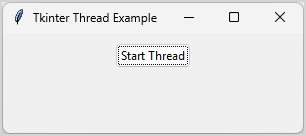
In Tkinter applications, the main loop should always start in the main thread. It handles events and updates the user interface (UI).
If you have an operation that takes time, you should execute it in a separate thread. To create and control multiple threads in Tkinter applications, you use the built-in threading module.
For more information on how to use the threading module, you can follow the Python threading tutorial.
The following program shows how to execute the task function in a separate thread:
import tkinter as tk
from tkinter import ttk
import time
from threading import Thread


def task():
    # Simulate a long-running task
    for i in range(5):
        print(f"Task running... {i+1}/5")
        time.sleep(1)

    print("Task completed!")

def handle_click():
    t = Thread(target=task)
    t.start()


root = tk.Tk()
root.geometry("300x100")
root.title("Tkinter Thread Example")

button = ttk.Button(
    root,
    text="Start Thread",
    command=handle_click
)
button.pack(padx=10 ,pady=10)

root.mainloop()Code language: Python (python)
How it works:
First, import the Thread class from the threading module:
from threading import ThreadCode language: Python (python)Second, define a function handle_click that creates a new thread and starts it:
def handle_click():
    t = Thread(target=task)
    t.start()Code language: Python (python)
The new thread will execute the task function.
Third, bind the handle_click function to the command of the button:
button = ttk.Button(
    root,
    text="Start Thread",
    command=handle_click
)Code language: Python (python)
If you run the program and click the button, it will create two threads:
- The main thread is responsible for updating the user interface.
- A second thread executes the
taskfunction.
Since the task function does not block the main thread, you can interact with the program like moving main window. It does not freeze like before.
Getting values from threads #
To get value from a thread, you follow these steps:
First, define a new class that extends the Thread class and define additional attributes you want to access after the thread finishes:
class CustomThread(Thread):
    def __init__(self):
        super().__init__()
        self.result = NoneCode language: Python (python)
Second, override the run() method of the Thread class, execute a task, and update the result:
def run(self):
   # execute a task
   # update the result
   self.result = return_valueCode language: Python (python)
For example, the following program shows how to get a random number in a separate thread and display the result on the main window: