
Learn how to optimize your website's Interaction to Next Paint.


Published: May 19, 2023, Last updated: September 2, 2025
Interaction to Next Paint (INP) is a stable Core Web Vital metric that assesses a page's overall responsiveness to user interactions by observing the latency of all qualifying interactions that occur throughout the lifespan of a user's visit to a page. The final INP value is the longest interaction observed (sometimes ignoring outliers).
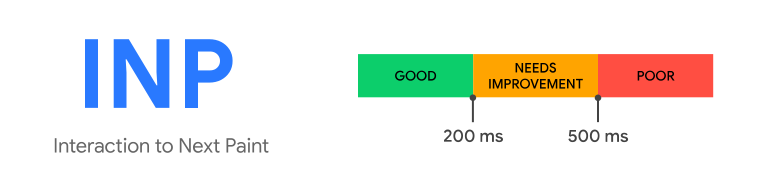
To provide a good user experience, websites should strive to have an Interaction to Next Paint of 200 milliseconds or less. To hit this target for most of your users, a good threshold to measure is the 75th percentile of page loads, segmented across mobile and desktop devices.
Depending on the website, there may be few to no interactions—such as pages of mostly text and images with few to no interactive elements. Or, in the case of websites such as text editors or games, there could be hundreds—even thousands—of interactions. In either case, where there's a high INP, the user experience is at risk.
It takes time and effort to improve INP, but the reward is a better user experience. In this guide, a path to improving INP will be explored.
Figure out what's causing poor INP
Before you can fix slow interactions, you'll need data to tell you if your website's INP is poor or needs improvement. Once you have that information, you can move into the lab to begin diagnosing slow interactions, and work your way toward a solution.
Find slow interactions in the field
Ideally, your journey in optimizing INP will start with field data. At its best, field data from a Real User Monitoring (RUM) provider will give you not only a page's INP value, but also contextual data that highlights what specific interaction was responsible for the INP value itself, whether the interaction occurred during or after page load, the type of interaction (click, keypress, or tap), and other valuable information.
If you're not relying on a RUM provider to get field data, the INP field data guide advises using PageSpeed Insights to view the Chrome User Experience Report (CrUX) data to help fill in the gaps. CrUX is the Google dataset of the Core Web Vitals program and provides a high-level summary of metrics for millions of websites, including INP. However, CrUX often does not provide the contextual data you'd get from a RUM provider to help you to analyze issues. Because of this, we still recommend that sites use a RUM provider when possible, or implement their own RUM solution to supplement what is available in CrUX.
Diagnose slow interactions in the lab
Ideally, you'll want to start testing in the lab once you have field data that suggests you have slow interactions. In the absence of field data, there are some strategies for identifying slow interactions in the lab. Such strategies include following common user flows and testing interactions along the way, as well as interacting with the page during load—when the main thread is often busiest—in order to identify slow interactions during that crucial part of the user experience.
Optimize interactions
Once you've identified a slow interaction and can manually reproduce it in the lab, the next step is to optimize it.
Interactions can be broken down into three subparts:
- The input delay, which starts when the user initiates an interaction with the page, and ends when the event callbacks for the interaction begin to run.
- The processing duration, which consists of the time it takes for event callbacks to run to completion.
- The presentation delay, which is the time it takes for the browser to present the next frame which contains the visual result of the interaction.

The sum of these three subparts is the total interaction latency. Every single subpart of an interaction contributes some amount of time to total interaction latency, so it's important to know how you can optimize each part of the interaction so it runs for as little time as possible.
Identify and reduce input delay
When a user interacts with a page, the first part of that interaction is the input delay. Depending on other activity on the page, input delays can be considerable in length. This could be due to activity occurring on the main thread (perhaps due to scripts loading, parsing and compiling), fetch handling, timer functions, or even from other interactions that occur in quick succession and overlap with one another.
Whatever the source of an interaction's input delay, you'll want to reduce input delay to a minimum so that interactions can begin running event callbacks as soon as possible.
The relationship between script evaluation and long tasks during startup
A critical aspect of interactivity in the page lifecycle is during startup. As a page loads, it will initially render, but it's important to remember that just because a page has rendered, doesn't mean that the page is finished loading. Depending on how many resources a page requires to become fully functional, it's possible that users may attempt to interact with the page while it's still loading.
One thing that can extend an interaction's input delay while a page loads is script evaluation. After a JavaScript file has been fetched from the network, the browser still has work to do before that JavaScript can run; that work includes parsing a script to check its syntax is valid, compiling it into bytecode, and then finally executing it.
Depending on the size of a script, this work can introduce long tasks on the main thread, which will delay the browser from responding to other user interactions. To keep your page responsive to user input during page load, it's important to understand what you can do to reduce the likelihood of long tasks during page load so the page stays snappy.
Optimize event callbacks
The input delay is only the first part of what INP measures. You'll also need to make sure that the event callbacks that run in response to a user interaction can complete as quickly as possible.
Yield to the main thread often
The best general advice in optimizing event callbacks is to do as little work as possible in them. However, your interaction logic may be complex, and you may only be able to marginally reduce the work they do.
If you find this is the case for your website, the next thing you can try is to break up the work in event callbacks into separate tasks. This prevents the collective work from becoming a long task that blocks the main thread, which allows other interactions that otherwise would be waiting on the main thread to run sooner.
setTimeout is one way to break up tasks, because the callback passed to it runs in a new task. You can use setTimeout by itself or abstract its use into a separate function for more ergonomic yielding.
Yielding indiscriminately is better than not yielding at all—however, there is a more nuanced way of yielding to the main thread, and that involves only yielding immediately after an event callback that updates the user interface so rendering logic can run sooner.
Yield to allow rendering work to occur sooner
A more advanced yielding technique involves structuring the code in your event callbacks to limit what gets run to just the logic required to apply visual updates for the next frame. Everything else can be deferred to a subsequent task. This not only keeps callbacks light and nimble, but it also improves rendering time for interactions by not allowing visual updates to block on event callback code.
For example, imagine a rich text editor that formats text as you type, but also updates other aspects of the UI in response to what you've written (such as word count, highlighting spelling mistakes, and other important visual feedback). In addition, the application may also need to save what you've written so that if you leave and return, you haven't lost any work.
In this example, the following four things need to happen in response to characters typed by the user. However, only the first item needs to be done before the next frame is presented.
- Update the text box with what the user typed and apply any required formatting.
- Update the part of the UI that displays the current word count.
- Run logic to check for spelling mistakes.
- Save the most recent changes (either locally or to a remote database).
The code to do this might look something like the following:
textBox.addEventListener('input', (inputEvent) => {
  // Update the UI immediately, so the changes the user made
  // are visible as soon as the next frame is presented.
  updateTextBox(inputEvent);

  // Use `setTimeout` to defer all other work until at least the next
  // frame by queuing a task in a `requestAnimationFrame()` callback.
  requestAnimationFrame(() => {
    setTimeout(() => {
      const text = textBox.textContent;
      updateWordCount(text);
      checkSpelling(text);
      saveChanges(text);
    }, 0);
  });
});
The following visualization shows how deferring any non-critical updates until after the next frame can reduce the processing duration and thus the overall interaction latency.
