
Clipboard Manager using Shortcuts for iOS - perfect for iPhone 15 Pro Action Button
🔗Shortcuts,📲iPhone,⭐️Featured
Ever since I got the iPhone 15 Pro I’ve been loving the new Action button and I keep inventing ideas how to use it even more. I’ve added many Shortcuts to it, like Journaling, Watch Notes, Dice and others… and recently I came up with a very cool idea - how to finally build my very own Clipboard manager using Shortcuts that takes advantage of the Action button, adds very useful features and the result is… glorious - and you can get it for free below:

- Get my 📋 Clipboard Shortcut for free!
- Clipboard Manager on iOS doesn’t really exist!
- Clipboard manager in Action (literally!)
- How to paste things back from the Shortcut?
- The Shortcut is optimized for performance!
- UX of Clipboard Manager optimized for as few taps as possible!
- Enjoy Clipboard Manager Shortcut until we get it built in iOS… 100?
- Version History:
Get my 📋 Clipboard Shortcut for free!
Just add this Shortcut:
Clipboard 1.1
It works on iPhone, iPad and Mac. It creates a clipboard.txt file in your Shortcuts directory on iCloud. This way this text file gets synced across all your devices. You can easily edit this file using any text editor. I recommend the free Runestone.
Now, why did I build my own Clipboard Manager using Shortcuts? Here’s the long story, its amazing features and why it works great with Action button.
Clipboard Manager on iOS doesn’t really exist!
It’s not even funny anymore that we’re a month away from iOS18 (yes, that’s eighteen!) and the system only can handle ONE THING in a Clipboard. You can copy something and paste it later. If you copy another thing, you’ll overwrite the old thing you had. That’s ridiculous:
Our iPhones have lots of storage, lots of RAM memory, yet they can store only one thing in the Clipboard.
There are apps that help with that - I’ve been using Copied for years for just this purpose. And it’s OK. It works fine… but it has glitches, sometimes crashes and the iCloud sync doesn’t work 100% reliably. It shows that I have 3071 items on my iPhone and 3110 on the iPad. Not really in sync.
The app supports both text and images, but what I realized over the years is that for me the most important part is supporting just pure text.
The other problem with this app and any other apps that try to be a Clipboard manager is the fact that they cannot save stuff in the background. The iOS doesn’t allow it. My Shortcut together with the Action button kind of solves this problem.
Clipboard manager in Action (literally!)
I’ve added my Clipboard Shortcut as a menu item to my Action button Shortcut (and to “Menu Bar” on the Mac) so that when I press the Action button, I see the option of “Clipboard” right there (see photo above).
Copy things in 1… 2… 3!
This makes copying stuff to my Shortcut a super easy process:
- I have something in my system clipboard, I hit the “Action button”
- I choose “Clipboard” option and it pastes the contents of clipboard to my Shortcut’s clipboard file in the background.
This way I can copy stuff from many places. I copy to clipboard, invoke the Action button and tap “Clipboard” and it’s saved. As easy as 1… 2… 3!
Copying multiple lines or paragraphs is supported!
If I have a text with a few paragraphs, I can just select all of them, copy to clipboard, tap on action button and hit the clipboard shortcut and then…

…the Clipboard Shortcut will show me all the paragraphs or lines I copied to clipboard and I’ll be able to select which ones to save to my Shortcut’s clipboard file!
Copying from Share Sheet is also supported!
Alternatively I can select text, tap “Share” and choose the “Clipboard” Shortcut from the actions and the thing is saved in my Shortcut right away!
How to paste things back from the Shortcut?
OK, copying is one thing - but how to access the contents stored in my Shortcut’s clipboard file? Easy, just open the Shortcut again!
You see, to make copying effortless I’ve made it so that when you copy something and open the Shortcut, it just saves it and closes so that you don’t have to tap anything and can keep doing what you’re doing. It doesn’t interrupt you.
However, if you open the Shortcut again, it realizes that the contents of the Clipboard and the item recently saved are the same, so it will open a menu with 10 recently saved items and additional options:
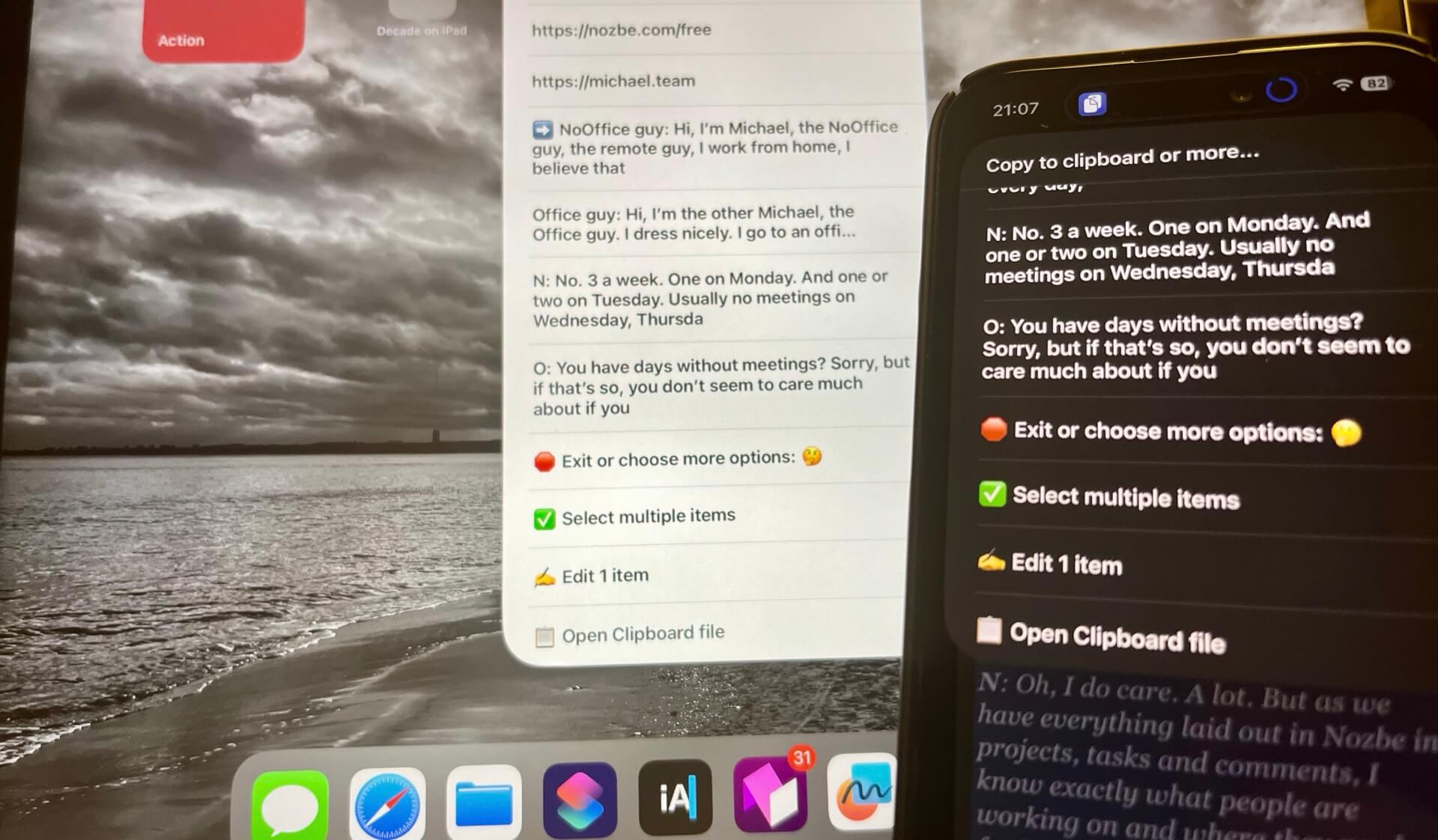
Now, I have several options:
Choose one of the recently saved items
When I choose one the items, it’s pasted directly to the system’s clipboard and ready to be pasted in an app or wherever I want.
As a hint, there is an arrow “➡️” symbol next to the item that’s currently saved in the system’s clipboard.
Select multiple items to paste
When you scroll down you’ll see additional options, the first one being: “✅ Select multiple items” and it’s really cool. You can choose several items recently saved in the Shortcut and use the “Share sheet” to send them to an app, other Shortcut or the system’s clipboard. It’s really powerful. As you can see my Shortcut lets you copy many things at once and later paste many things!
Edit 1 item
Sometimes someone sends me a message with a phone number inside or an account number or any other info that I need. With my Shortcut I can firstly save the entire message and later choose this option to edit it and save only the part that interests me.
Open Clipboard file
Last option is to open the entire clipboard.txt file in a default text editor. This is really cool because this way I can edit the file directly, copy stuff from it or remove lines of text or edit things. This is the power of true versatility of a text file - it can be modified at any time easily!

The Shortcut is optimized for performance!
As you use the Shortcut, the clipboard file will keep growing. However I’ve used a trick to make sure it’s still fast, even if you have thousands of lines of text in there.
When it opens the text file, it gets only 10 last lines of text from the file. My experience has taught me that you don’t need more. However, if you do, you can customize the Shortcut and change this parameter in its “Settings Dictionary”.
Of course, as your life grows, you can also periodically make a copy of your clipboard file. Just rename the clipboard.txt to something else and the Shortcut will create a new one from scratch and you will still have an archive of your old clipboard history.
UX of Clipboard Manager optimized for as few taps as possible!
I’m very proud of the interesting design decisions I made when creating this Shortcut:
- When you have a text snippet stored in your system clipboard and you open this Shortcut, it just saves whatever is stored in clipboard and sends you a notification. That’s it. There’s no menu, no nothing. You can keep doing what you’re doing.
- Only when you open this Shortcut again, it will realize that there’s nothing new to save and it will open the menu with options.
- Menu is also optimized - there are 10 last saved items first so when you tap on any of them, you copy it to the system clipboard and you’re done. But!… if you scroll down you’ll see additional options mentioned above, like “selecting multiple items”, “editing 1 item” or “opening clipboard”.
- The Shortcut detects when you have a line of text in the system clipboard or many lines of texts - and only then it asks you to choose which lines to save to the Shortcut’s clipboard file.
- It detects web pages and email addresses - so if you tap on a link it saves it in system clipboard and asks if you want to open this page. When it detects an email address, it lets you directly write a message to that address. I can think of other customizations in the future…
As you can see, the Shortcut is optimized for minimum number of taps and the flattest menu possible so that you can use the clipboard directly or access options easily.
Enjoy Clipboard Manager Shortcut until we get it built in iOS… 100?
Support for multiple items in system clipboard is not a novel idea and it’s hard to do it through an external app because it should be built in the system. But it’s not, that’s why I’ve been using the Copied app over the years and that’s why I’ve finally built this Clipboard Shortcut.
Enjoy and please let me know how it works for you. Thanks!
Version History:
As this Shortcut is being used, it surely will be updated and improved:
- Clipboard 1.2 - support for my additional shortcuts: YouTube Watcher and Link to Markdown
- Clipboard 1.1 - support for multi-line paste and indication which item is in clipboard currently - 2.05.24
- Clipboard 1.0 - supports 10 last rows and new menu, and mailto and web links - 2.05.24
- Clipboard 0.1 - proof of concept - 1.05.24