

The less command in Linux is a frequently used command to view any file, though it doesn’t provide an editing opportunity. It helps viewers to see a document page by page and gives better control to navigate through the file.
A. Description
less is a handy command in Linux that shows any file’s contents one page at a time. This command is more useful when viewing a large file with many lines because it doesn’t load the entire file, so it gives a first loading speed.
Note: You can navigate through the texts using the ARROW keys and navigate page to page using the SPACE key.
B. Syntax
The syntax of less command in Linux is very simple which is as below:
less [OPTIONS]... (FILE_PATH OR FILE_NAME)Note: In the syntax above square bracket means the OPTIONS are not mandatory and three dots after the square bracket means multiple OPTIONS can be used after the less command.
C. Options
There are many useful options available for the less command. I have listed some of the most used options which are given below. You can know more about options and their use by checking the man page.
man lessUseful Options
- -E: To take the automatic exit after reaching the end of a file.
- -f: Use to force less to open non-regular files.
- -F: Open the file in the terminal when the entire file can be displayed on the first screen.
- -i: Ignores case sensitivity
- -n: Remove the line number from the screen.
- -N: Display the line number at the beginning of each line.
- -p[pattern]: Start the file from the line that contains the pattern for the first time.
- -s: Marge multiple spaces in one space.
- z[n]: Change the scrolling window size to n line.
NB: The options in Linux CLI (Command Line Interface) are all case-sensitive, So be cautious while using them.
Practical Examples of the “less” Command in Linux
less is a helpful command that helps to show a document in a manageable way. In the section below I will show you some most useful applications with less command in Linux.
Example 1: Open a Text File With the “less” Command in Linux
You can view a file’s contents page by page by opening that file with less command in Linux. For this, you can use a relative path or an absolute path of the file location. Here, I have a file named file.txt under the location /home/amdadul. Now, I will display this file page by page. To do so you can follow the below procedure.
Steps to Follow >
➊ At first open the Ubuntu Terminal.
➋ Type the following command in the command prompt:
less file.txt➌ Now, press the ENTER button.
Output >
In the following image, you can see that less has displayed the contents of file.txt on one page at a time format.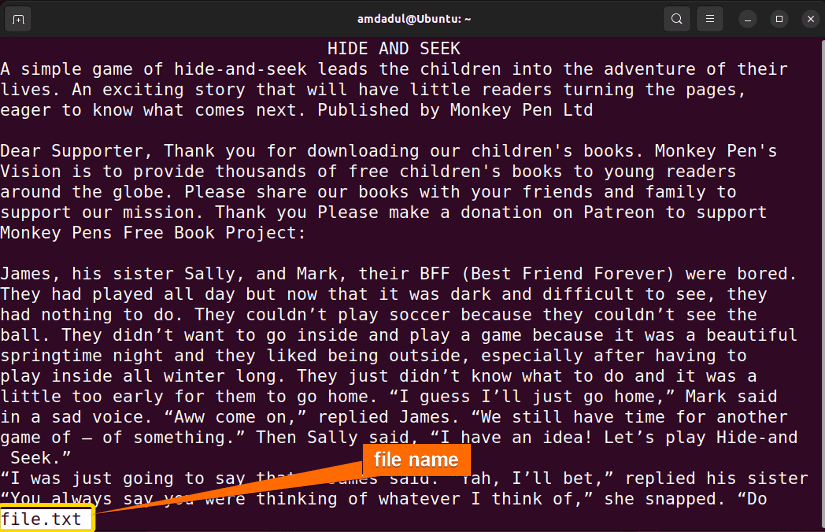
Example 2: Open a Text File With Line Number
To display the line number of a specified file you can use the -N option after less command. Here I will show you the file.txt with the line number and to do so you can follow me in the manner I describe below.
Steps to Follow >
➊ At first open the Ubuntu Terminal.
➋ Type the following command in the command prompt:
less -N file.txt➌ Now, press the ENTER button.
Output >
In the image below, you can see the file’s contents with line numbers.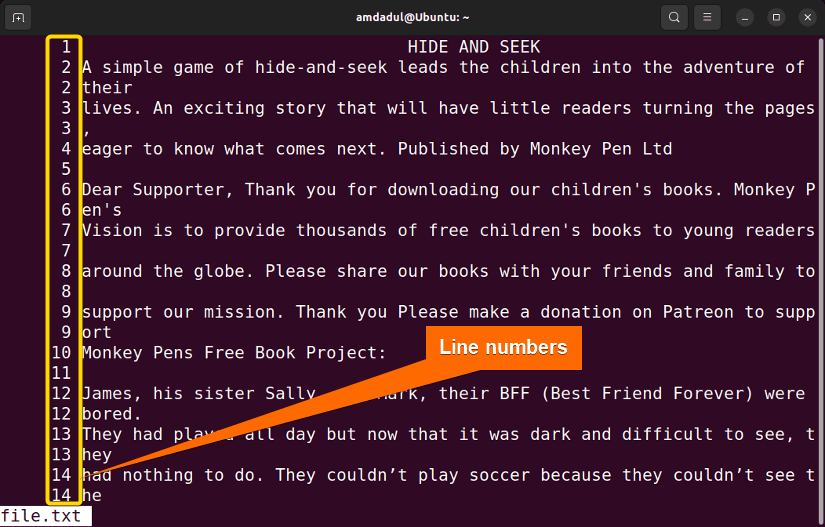
Example 3: Search for a String With the “less” Command in Linux
You can search for a specific pattern under the terminal of less command. /PATTERN is used to search forward from the current position for the PATTERN string and ?PATTERN is used to search backward from the current position for the PATTERN string. You will see the search phrase at the bottom line of the less terminal display. Now, I will show you the process to search for something, to do so you can follow me in the manner I describe below.
Note: Searching in less is case-sensitive. You can ignore case sensitivity by using the -I option or pressing the I key within less.
Steps to Follow >
➊ At first open the Ubuntu Terminal.
➋ Type the following command in the command prompt:
less -I file.txt➌ Now, press the ENTER button. After pressing ENTER the file will open and you will see the search phrase at the bottom as in the image below.
➍ Type the string which you want to search in the search phrase. Here, I will search for the string “book”.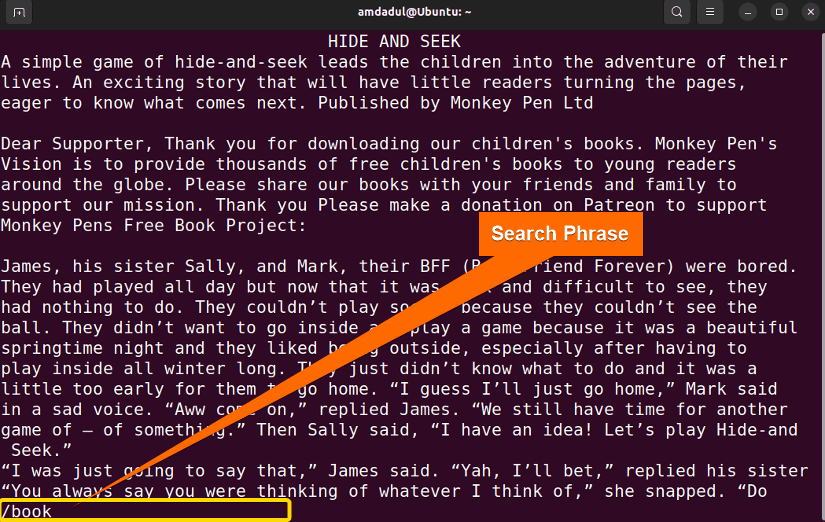 ➎ Now, press the ENTER button.
Output >
When I search for the string book the result I get as the image below. You will get the same for your desired search.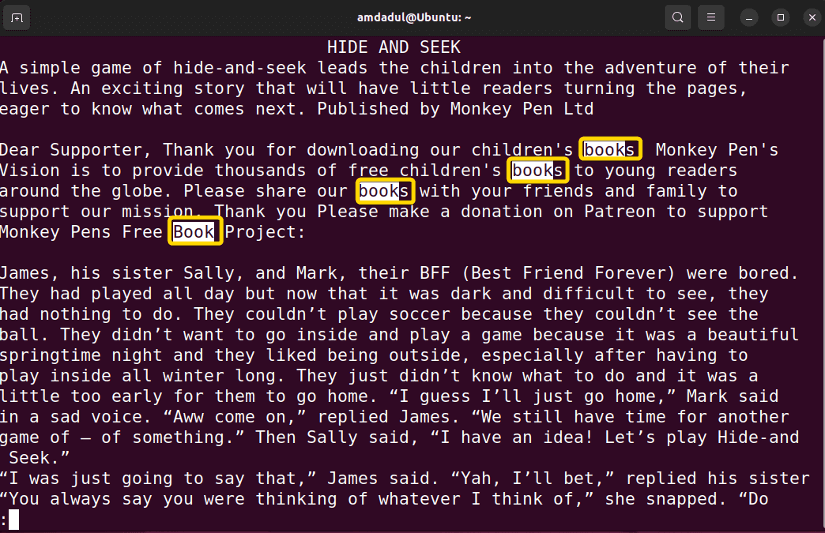
Example 4: Open a File Starting With a Specific Pattern
If you want to open a file from a line that contains a specific PATTERN for the first time in the document then you can use the -p option before the desired PATTERN. I am adding an example that you can follow according to the process below
Steps to Follow >
➊ At first open the Ubuntu Terminal.
➋ Type the following command in the command prompt:
less -p Book file.txt➌ Now, press the ENTER button.
Output >
Through this process, you will get the result as shown in the picture below. Here, you can see that the file opens at the line where the Book string is used for the first time in the document.