This tutorial describes how to connect to BigCommerce.
In this walkthrough:
- Requirements
- General information
- Creating BigcommerceConnection
- Opening connection
- Closing connection
- Modifying connection
Requirements
In order to connect to BigCommerce you need to have the corresponding account, dotConnect for BigCommerce installed and IDE running. You also have to know the required connection parameters described below.
Note that if you do not use design-time (specifically, if you do not place designer BigcommerceConnection component from the Toolbox to the form), you have to embed licensing information manually. This is described in topic Licensing.
Required Connection Parameters
To establish a connection to server you have to provide the required connection parameters to dotConnect for BigCommerce. This information is used by BigcommerceConnection component to connect to BigCommerce. The parameters are represented as a connection string. You can compose the connection string manually or have dotConnect for BigCommerce construct it for you.
The following connection string parameters are required:
- Host - The API Path - the path where all XML requests to BigCommerce should be sent;
- User Id - The user name to login with;
- Authentication Token - An automatically generated key used to connect to BigCommerce;
To get the Host, User Id, and Authentication Token parameters, sign in to BigCommerce in the browser, point to the Settings link in the bottom left corner of the page, and then in the Advanced Settings column click the Legacy API Settings link. After this, you can find all the necessary parameters in the opened Legacy API Account Details. Username corresponds to the User Id parameter, API Path - to the Host parameter, and API Token - to the Authentication Token parameter.
Creating a Connection to BigCommerce
Design time creation
The following assumes that you have IDE running, and you are currently focused on a form designer.
- Open Toolbox and find BigcommerceConnection component in dotConnect for BigCommerce category.
- Double-click the component. Notice that new object appears on the designer underneath the form. If this is first time you create the BigcommerceConnection in this application it is named bigcommerceConnection1.
- Click on the bigcommerceConnection1 object and press F4 to focus on object's properties.
- Enter the required connection string parameters, described above, to the corresponding boxes.
- Notice that as you assign values to these properties the ConnectionString property is automatically updated to reflect your settings. Now it contains something like "Server=https://bigcommerce-store.mybigcommerce.com/api/v2/;User Id=User;Authentication Token=qweASDzcx1234567890rtyuiqweASDzcx1234567;".
- If necessary, click the Advanced button and configure other connection string parameters. You can find the description of these connection string parameters in the BigcommerceConnection.ConnectionString topic.
Run time creation
You can also configure a connection at run-time by setting its ConnectionString property (note that you have to add references to Devart.Data.Bigcommerce.dll, Devart.Data.SqlShim.dll, and Devart.Data.dll assemblies):
Using connection string builder
If you decide to setup connection by assigning values to several properties, consider using BigcommerceConnectionStringBuilder class. It has all of the possible connection settings exposed as properties, thus allowing to customize the connection at full extent.
Notice that in this example we used BigcommerceConnection constructor that accepts connection string as argument.
For the information on arguments allowed in the connection string, refer to the description of the BigcommerceConnection.ConnectionString property.
Creating Connection in Server Explorer
To create a Server Explorer connection:
- On the Server Explorer toolbar, click Connect to Database.
- Under Data source, select BigCommerce Data Source.
- Under Data provider, select dotConnect for BigCommerce, then click Continue.
- In Authentication Type, select Basic or OAuth.
- Specify the connection parameters:
- For Basic authentication: specify the Host, User Id, and Authentication Token.
- For OAuth authentication: specify the Store Id, Client Id, and Access Token.
- Click OK.

After this you can browse BigCommerce objects in Server Explorer.
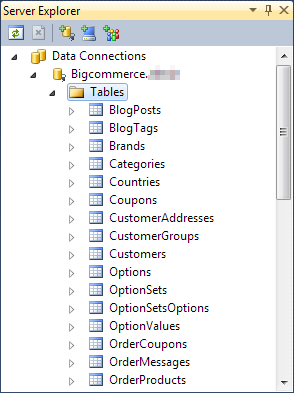
Opening connection
Opening a connection is as simple as that:
Of course, the myConnection1 object must have a valid connection string assigned earlier. When you call Open, dotConnect for BigCommerce tries to find the host and connect to BigCommerce. If any problem occurs it raises an exception with brief explanation on what is wrong. If no problem is encountered dotConnect for BigCommerce tries to establish the connection during ConnectionTimeout interval. Finally, when connection is established, the Open method returns and State property is changed to Open.
In design time you can connect to server in few steps:
- Right-click on the connection object in designer and then click Connect.
- In the dialog window provide the required connection parameters.
- Click on the connection object and press F4 to focus on object's properties.
- If necessary, click the Advanced button and configure other connection string parameters. You can find the description of these connection string parameters in the BigcommerceConnection.ConnectionString topic.
- Click Connect to establish connection.
Or you can simply change the State property to Open in the Properties window to establish a connection using the current connection string.
Closing connection
To close a connection call its Close method, or set its State property to Closed.
The following example summarizes aforementioned information and shows how to create, setup, open, use and then close the connection.
The sample code connects to server, shows its version and then closes the connection. This actually is a rare usage, because in real applications connections are used by other objects like BigcommerceCommand, BigcommerceDataReader and others. For more information on this please see corresponding tutorials or reference information.
Modifying Connection
You can modify connection by changing properties of BigcommerceConnection object. Keep in mind that while some of the properties can be altered freely, most of them close connection when new value is assigned.