
Setting up a custom subdomain helps build brand recognition and improves deliverability. Your contacts will see campaigns sent directly from your brand, which makes them more likely to engage.
Before you start
Review our FAQ on subdomains: What is a subdomain?
You can find subdomains as a prefix in front of a primary/root domain. For example, the “mail” in hello@mail.hive.co is the subdomain, and "hive.co" is the primary domain.
Make sure you or someone on your team has access to your DNS records.
DNS changes can take 24–48 hours to propagate.
You can still send campaigns before setup is complete. Until verification, your emails will send from a Hive subdomain (
mail@hive.co).If your domain isn’t verified after 48 hours, email support@hive.co.
Once verified, your domain will go through the Hive domain warm up process automatically.
Steps for adding a custom subdomain
Step 1: Go to custom subdomains
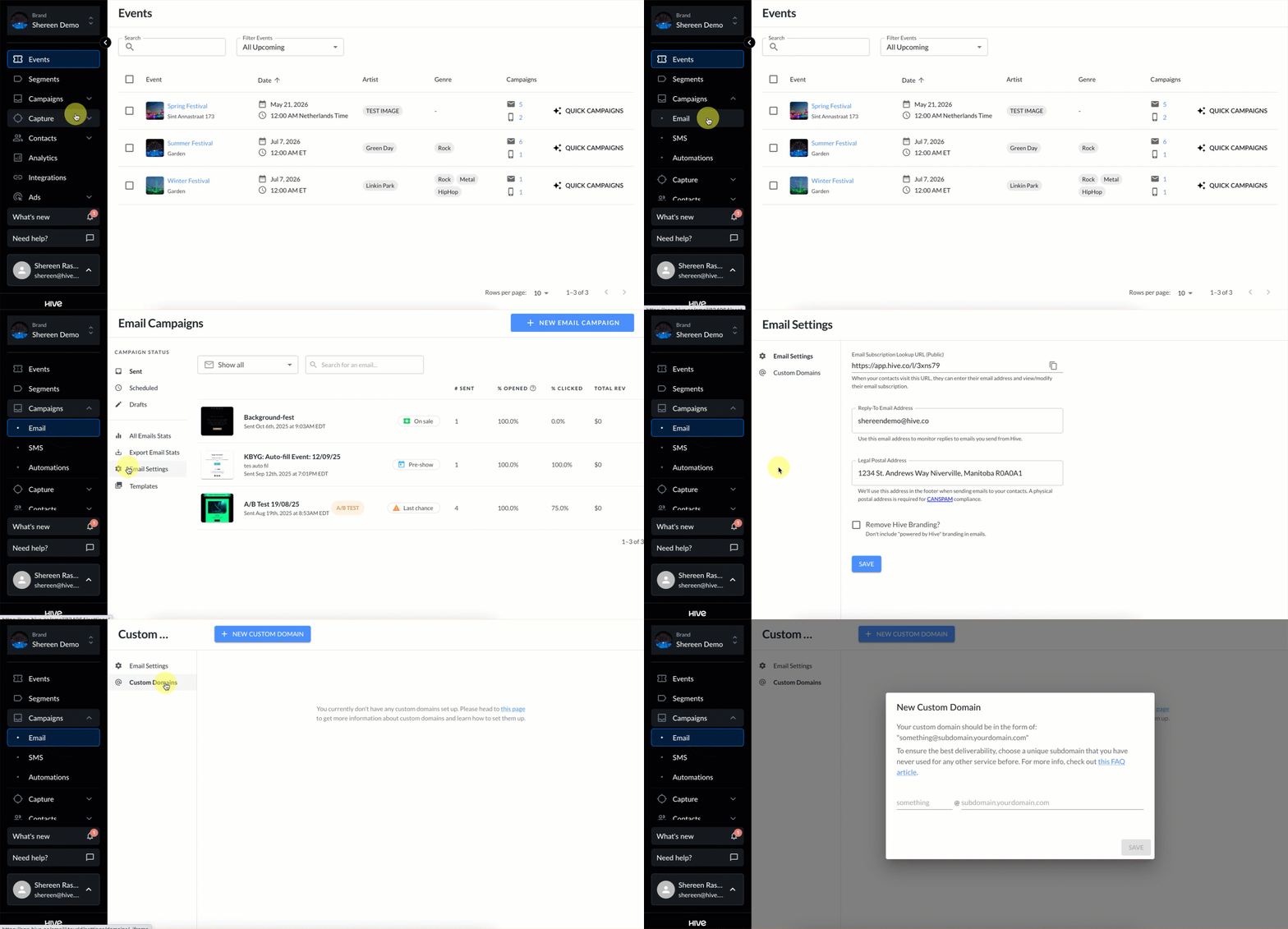
Go to Campaigns in the left sidebar, select Email, click Email settings then Custom domains.
Step 2: Add your custom subdomain in Hive
Click + New Custom Domain
Enter your subdomain in the popup window and click Save.
Example: In
hello@mail.hive.co, “mail” is the subdomain.You can type any placeholder (e.g., “hello”) in the field.
Need help choosing a subdomain? Check out this article.
After saving, Hive will generate two CNAME records and two TXT records. These need to be added to your DNS provider.

Note: You can share the DNS setup instructions with your team by clicking Send Instruction in the bottom right.
Step 3: Add CNAME and TXT records to your DNS provider
Copy and paste the 4 records from Hive into your DNS provider. You’ll need to:
Create two CNAME records
Create two TXT records
These records are required for authentication purposes, such as verifying your domain and properly configuring SPF, DKIM, and other email protocols.
Common DNS providers include GoDaddy, Hover, and Bluehost. Here are step-by-step instructions for popular providers (TXT + CNAME):
NameCheap: TXT, CNAME
Network Solutions: TXT, CNAME (follow Step #3 for both)
Dreamhost: TXT, CNAME
By default, Hive sets your DMARC policy to p=none. If your domain is ready for a stricter enforcement level, you can request Hive to update your DMARC policy to quarantine or reject via your custom domain settings page. Contact support@hive.co to make this change.
Step 4: Completing setup
Once you’ve added the records and DNS propagation is complete (24–48 hours), your domain will be verified. The status will update to Valid on your Custom Domains page.
You may need to refresh or click the Valid button. If you’re not sure where to add records, view instructions for your DNS provider. After verification, Hive will automatically begin the domain warm up process.
Managing and Deleting Custom Subdomains
If you need to delete a custom subdomain:
Go to the Emails page in Hive.
In the left sidebar, click on Email Settings and expand the Custom Domains section.
Click the action dropdown and click Delete Domain

This action removes the subdomain from Hive’s records but allows for re-addition and verification in case of DNS-related fixes.