
Let’s start with the basics: What’s the difference between SMS and MMS?
SMS (Short Message Service) is the standard text messaging service that lets you send plain text messages up to 160 characters.
MMS (Multimedia Messaging Service) allows you to send messages with richer content, like images, videos, audio files, or longer text.
To use Hive’s SMS/MMS marketing tools, you’ll need to have an active paid Email Subscription in place before moving on with the steps below.
Your dedicated Hive phone number
Each brand in Hive gets its own toll-free phone number, and all outgoing SMS/ MMS messages will be sent from this number.
If someone texts your number, they’ll be automatically added to your contact list and can be opted in to receive future SMS/MMS messages. Want to go a step further? Check out our article on How to setup a keyword SMS auto response automation to make the most of Hive’s SMS tools.
Before you can send your first SMS/MMS campaign, you'll need to set up your toll-free number. To do this, head to the Campaigns section in your Hive account and click on SMS. From there, follow these steps:
Accept Hive’s terms and conditions.
Fill out the business registration form. Access it from your dashboard by going to Campaigns in the sidebar, then selecting SMS.
You’ll see an alert saying “SMS carrier registration required.” Click the Submit your business registration link and complete the form.
Wait 1–2 weeks for approval (often faster). You’ll get a confirmation as soon as you’re approved.
For guidance on sending SMS campaigns from your Hive account, review this handy getting started checklist.
SMS Settings
From your SMS page, navigate to the SMS Settings section. Here, you can view your dedicated toll-free number and default keyword responses—such as Opt In, Opt Out, and Help messages—as well as links to your Terms of Service and Compliance Policy.
While the Terms of Service and Compliance Policy are standard across all Hive accounts, you do have the option to replace the URLs with links to your own policies.
These default keywords are required for legal compliance and help ensure proper handling of opt-in, opt-out, and support requests. If you'd like to update these default responses, please contact Hive Support at support@hive.co.
Default Keyword | Action | Response |
CANCEL, END, QUIT, UNSUBSCRIBE, STOP, STOPALL | Opt Out | You have successfully been unsubscribed. You will not receive any more messages from this number. Reply START to resubscribe. |
START, YES, UNSTOP | Opt In | You have successfully been re-subscribed to messages from this number. Reply HELP for help. Reply STOP to unsubscribe. Msg&Data Rates May Apply. |
HELP, INFO | Help | Reply STOP to unsubscribe. Msg&Data Rates May Apply. |
If you’d like to create custom keyword triggers, check out this article on how to set up a keyword within your Hive automations.
Billing for SMS/ MMS
SMS/MMS billing is separate from your Hive Email Marketing subscription. SMS is billed on a pay-as-you-go basis.
To enable SMS/MMS billing, reach out to our Product Support Team at support@hive.co or send us a message in Hive using the live chat.
Check out our SMS/MMS Pricing article for details.
Collecting SMS opt-ins
Already have subscribers opted in? Great! Here’s how to import phone numbers for SMS’. If you’re creating a signup form in Hive:
Select the Phone Number form field.
An Opt-in Consent checkbox will automatically appear below the phone number field.
A subscriber will only be opted in if they check the consent box, which states:
“By providing your phone number, you agree to receive recurring automated marketing text messages (e.g. cart reminders) from this company and third parties acting on its behalf. Consent is not a condition to obtain goods or services. Msg & data rates may apply. Msg frequency varies. Reply HELP for help and STOP to cancel. You also agree to the Terms of Service and Privacy Policy.”
Along with responding to an SMS campaign, subscribers can also opt in through a Hive signup form or the Hive SDK on your website.
Using recommended SMS campaigns
On the SMS campaign creation page, you’ll see three sections:
Create from scratch
Sell tickets
Engage and inform
The “Sell Tickets and Engage & Inform” section features pre-built campaigns that come fully templated and pre-filtered for quick and easy use. These ready-made campaigns help you start engaging your subscribers and driving ticket sales right away. If you choose to create a campaign from scratch, you'll be taken to a blank canvas to build your SMS campaign exactly how you want.
Creating an SMS/MMS campaign
Sending a one-time SMS/MMS campaign is easy – just follow these five steps:
Create the campaign
Click Campaigns in the left-hand navigation bar, select SMS, and click New SMS Campaign.
Choose SMS campaign under “Create from scratch.”
2. Choose your recipients
Select the recipients you want to target.
Leverage Hive’s filtering options to get as specific as you’d like. For more information on how to use Hive’s filtering options, along with tips and tricks, check out this article.
Note: Only contacts subscribed to SMS will receive SMS/MMS campaigns. Transaction emails to unsubscribed contacts is currently not supported.
3. Set campaign details
Give your campaign a clear, descriptive name to stay organized ex. Festival- Know before you go- 28/07/25. (Your future self will thank you!)
Decide whether to send immediately or schedule for later.

4. Edit your message
Your brand name will auto-populate but can be edited.
If sending an MMS, you can add an image or event block.
Event blocks will automatically include the Event Image, Name, Location, Time, Date, and Ticketing Link.
If you don’t see your event, double-check your ticketing integration or upload the event data via CSV.
Use Merge Tags to personalize messages, then send yourself a test to preview.
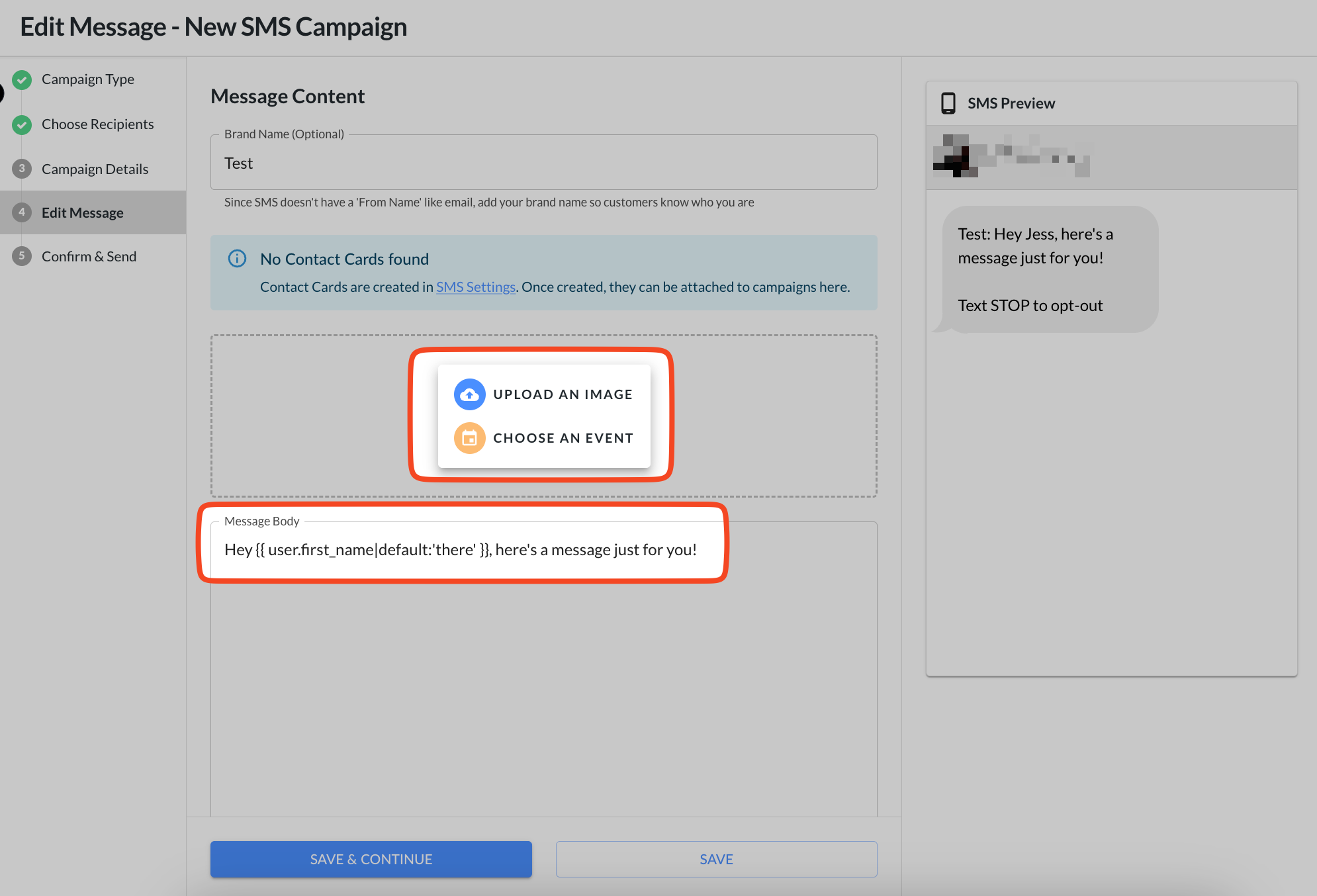
Note: MMS messages have a different character count and pricing. Learn more here.
5. Confirm and send
Review everything, including the approximate cost, number of recipients and the time it will take for your message to send.
If you create an SMS quick campaign- you can also set a budget cap to ensure your SMS/MMS cost send stays under a certain amount. An example of how the budgeting feature works, if your recipient count is larger than expected, you can set a budget and the system will automatically keep you within it by randomly removing contacts from the send list until it matches your budget.
When ready, hit Confirm and Send!
Note: SMS messages are sent at approximately 3 messages per second, while MMS messages are sent at 1 message per second. If you need faster delivery (for example, for on-site events), please reach out to your Customer Success Manager or our Support Team at support@hive.co. We can discuss options such as increasing your throughput or setting up a short code, both of which allow for significantly faster send times.
Revenue attribution
Hive uses the email address as the unique identifier for each contact. If a ticket purchase is made using an email already in your Hive brand, we can attribute the revenue to that contact profile.
If the contact only has a phone number (no email), we won’t be able to tie ticket purchase revenue back to them.
Pro tip: Always collect both an email address and mobile number in your capture tools and ticketing setup to ensure the most accurate revenue tracking.
Now that you’re all set up with SMS marketing in Hive, be sure to check out our Guide to SMS Marketing and Automations for more tips and strategies!