
Exit intent signup forms are a highly effective way to collect subscriber information. Unlike forms tucked in a footer or on a separate page, they appear just as a visitor is about to leave—making them more noticeable and giving you a moment to spotlight the value of signing up (early ticket access, special offers, event updates) right when engagement is at risk.
You can leverage this capture tool to collect SMS opt-ins! If you’d like to learn more about SMS marketing compliance, you can refer to this article for a detailed overview: SMS compliance overview (US and Canada)
Create a new exit intent form
In your Hive account, go to Capture in the left-hand navigation and select Popup Forms. This will bring you to your main forms page. From here, click + New popup form (top right).
You’ll see three options:
Popup form – appears while someone is browsing.
Exit intent form – appears when someone is about to leave your site.
Hive SDK – for sites with a custom-built form, letting you connect signups directly to Hive.
For this article, we’ll walk through creating an exit intent form.
Next, you’ll be taken to the form builder where you can complete the configuration.

Add form details
Give your exit intent form an internal name. This name is only visible inside Hive, so choose something clear and recognizable for your team.
Customize the design
When you create an exit intent form, Hive generates an embed code that you can customize to match your website. Within the form builder, you can:
Add header text – the main message that appears on your form.
Select a form layout – choose vertical or horizontal.
Button label
Customize the call-to-action text on your button. By default it says Subscribe, but you can edit this to match your brand voice.
Choose your form fields
Select the information you’d like to collect (e.g., name, email, mobile number) by checking the box next to each field. As you make selections, you’ll see a live preview of your form update on the right side of the screen.
Notes:
If you include a mobile number field, Hive automatically adds the required compliance text to ensure the data is collected correctly.
The more fields you add, the higher the chance of drop-off. Collect only what you’ll actually use.
Add to segment(s)
Choose which segment(s) new signups should be added to. This won’t display on your form—it’s just for organizing your contacts in Hive.
To add users to an existing segment, type the segment name exactly as it appears in Hive (case and character sensitive).
You can also create a new segment directly from here.
Set up opt-in segments (optional)
Add interest or preference segments as checkboxes on your form. When visitors select these, they’ll be added to the corresponding segments in Hive. You can remove any default options by clicking X.
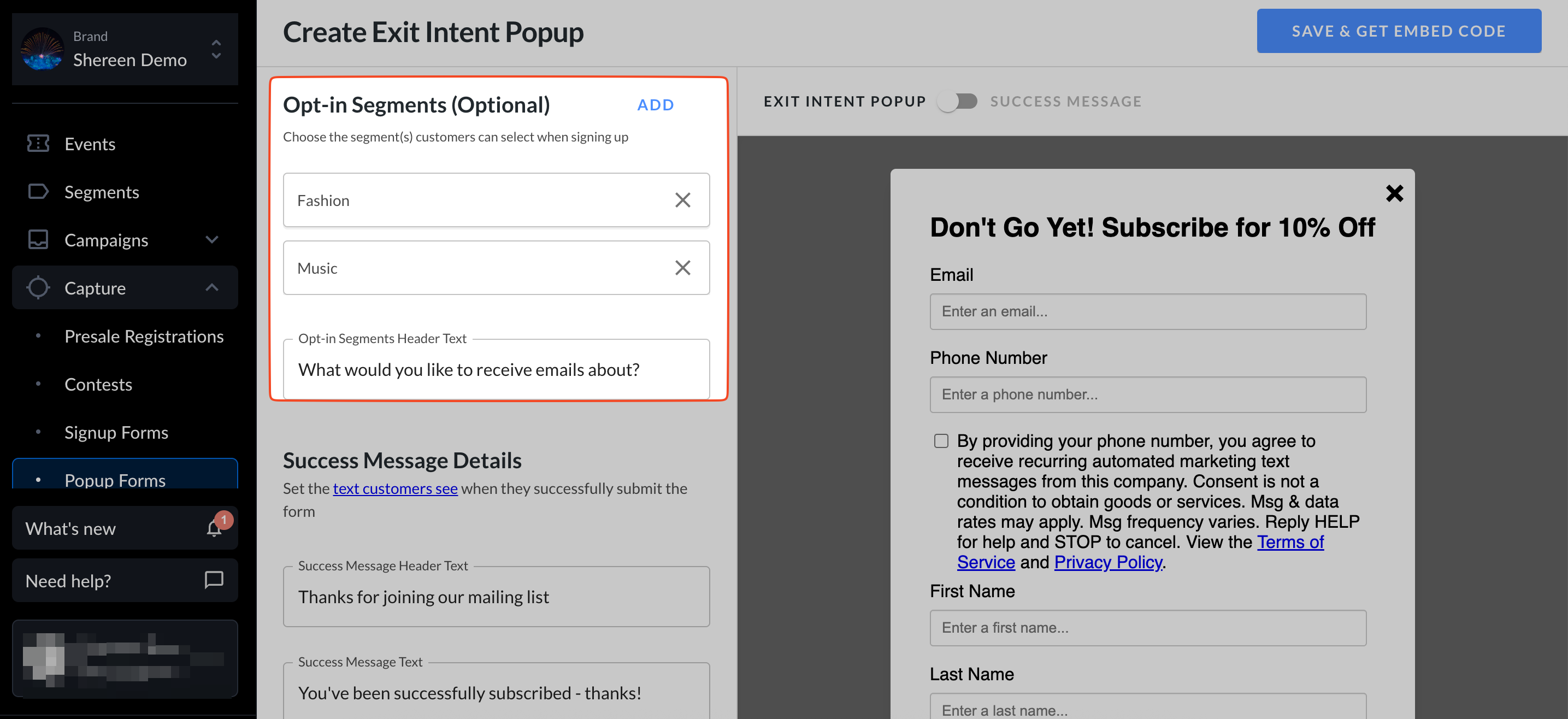
This works especially well for venues with multiple event types—e.g., rock, hip-hop, or jazz—so contacts can indicate what they care about most.
This enables more relevant, targeted messaging. It improves the experience for your audience and can boost key metrics like open and click-through rates—ultimately increasing conversions and attributed revenue.
Write your success message
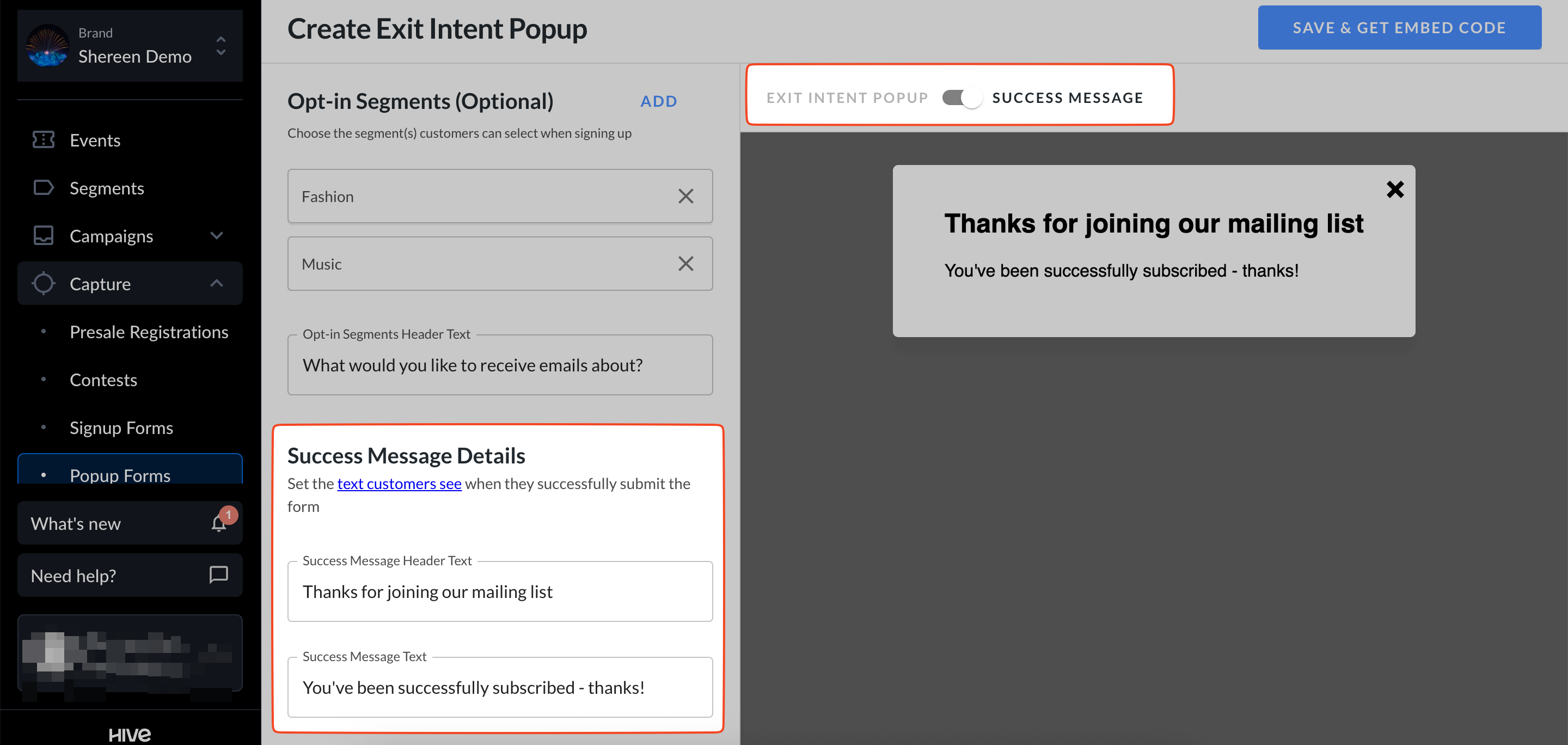
Create the confirmation message visitors see after a successful signup (e.g., “Thanks for joining!”).
By default, the preview displays your main form. To view the success message, toggle the preview switch. We recommend reviewing both before going live.
Save and get embed code
When everything looks good, click Save & Get Embed Code (top right).

Copy the generated HTML and paste it into your website where you’d like the exit intent form to appear.

For details on viewing and exporting contacts collected by a signup forms, see this help article.
Customize your welcome email/SMS
Did you know 74% of people who sign up for SMS or email expect a welcome message? Without it, they may assume something went wrong. A welcome message also helps with SMS compliance by clearly showing new subscribers how to opt out if they choose.
Setting up the welcome email/SMS automation
When you create an exit intent form and click Edit welcome email/SMS, Hive automatically generates a Welcome Email/SMS automation for you. From here, you’ll need to:
Review the content to ensure it matches your brand’s look and tone.
Toggle from Paused to Live when you’re ready to start sending.
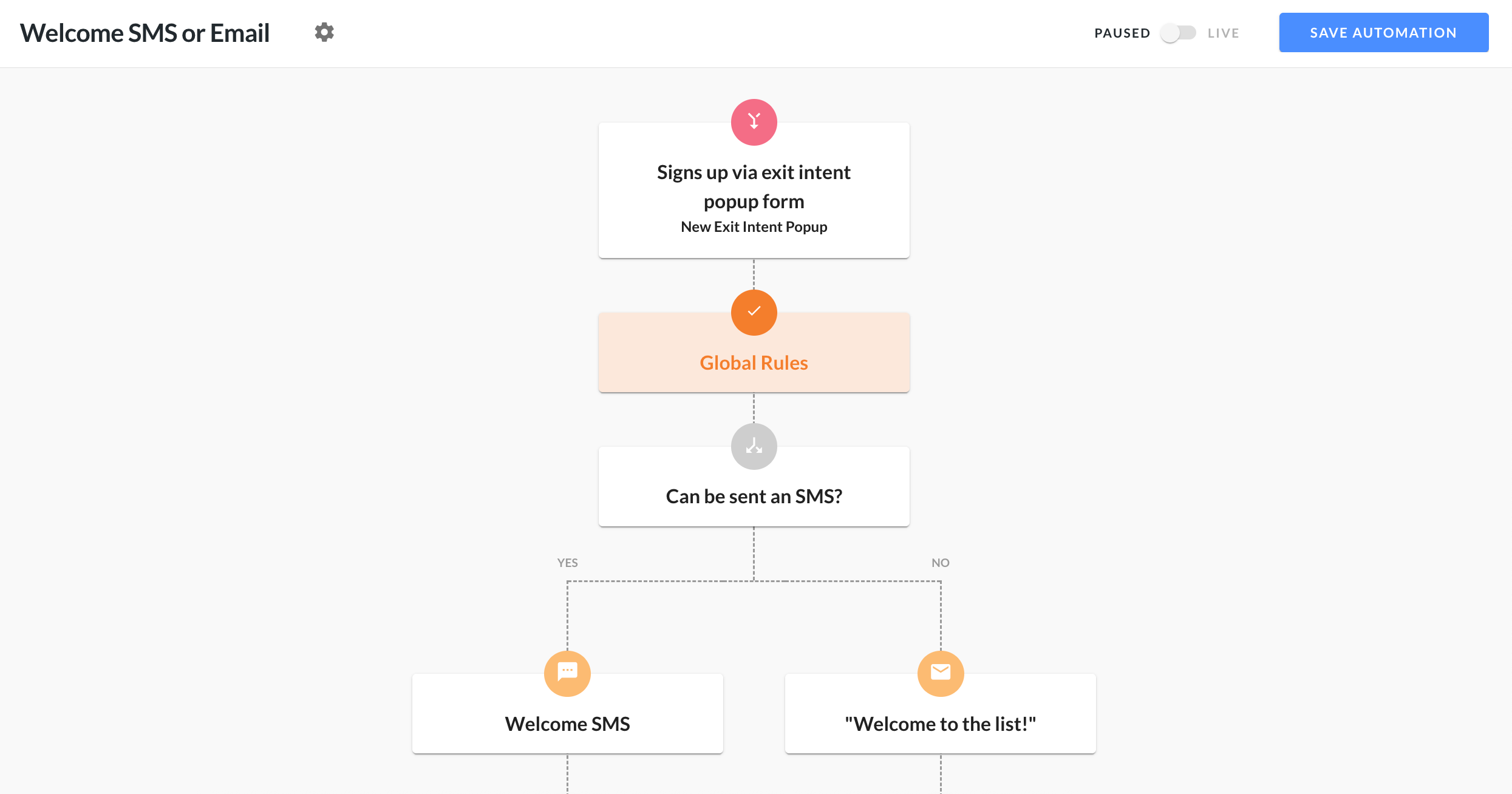
For step-by-step instructions on customizing and editing automations, see this help article.
Note: Starting with your signup form is great because Hive automatically creates a draft automation for you.