
You can now create live genre segments that automatically update whenever a customer purchases a ticket for a specific genre. This allows you to keep your audience lists dynamic and up to date.
Follow the steps below to merge your existing static genre segments with newly created live segments, so all your contacts live in one place.
Step 1: Create a live segment for each genre
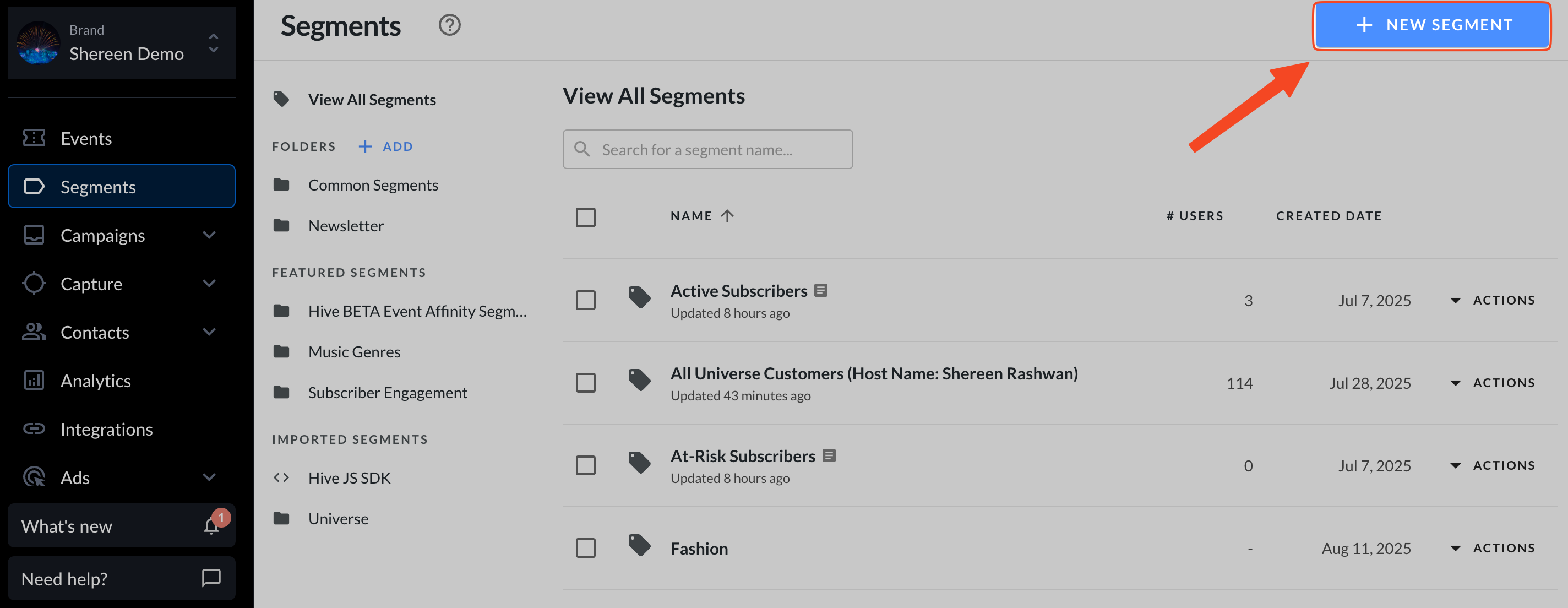
In the left sidebar, go to Segments > New Segment
Name your segment something like "Genre_Title Live"
Select live segment as the segment type
Click + add filter

Under categories, navigate to:
event data > purchased ticket(s) > purchased tickets for event genre
Select the appropriate genre (e.g., hip hop) from the dropdown
Click save segment
Step 2: Merge your static segment with the new live segment
On the segments page, click + new segment
Name this one something like "Genre_Title Total"
Select live segment as the segment type
Click + add filter
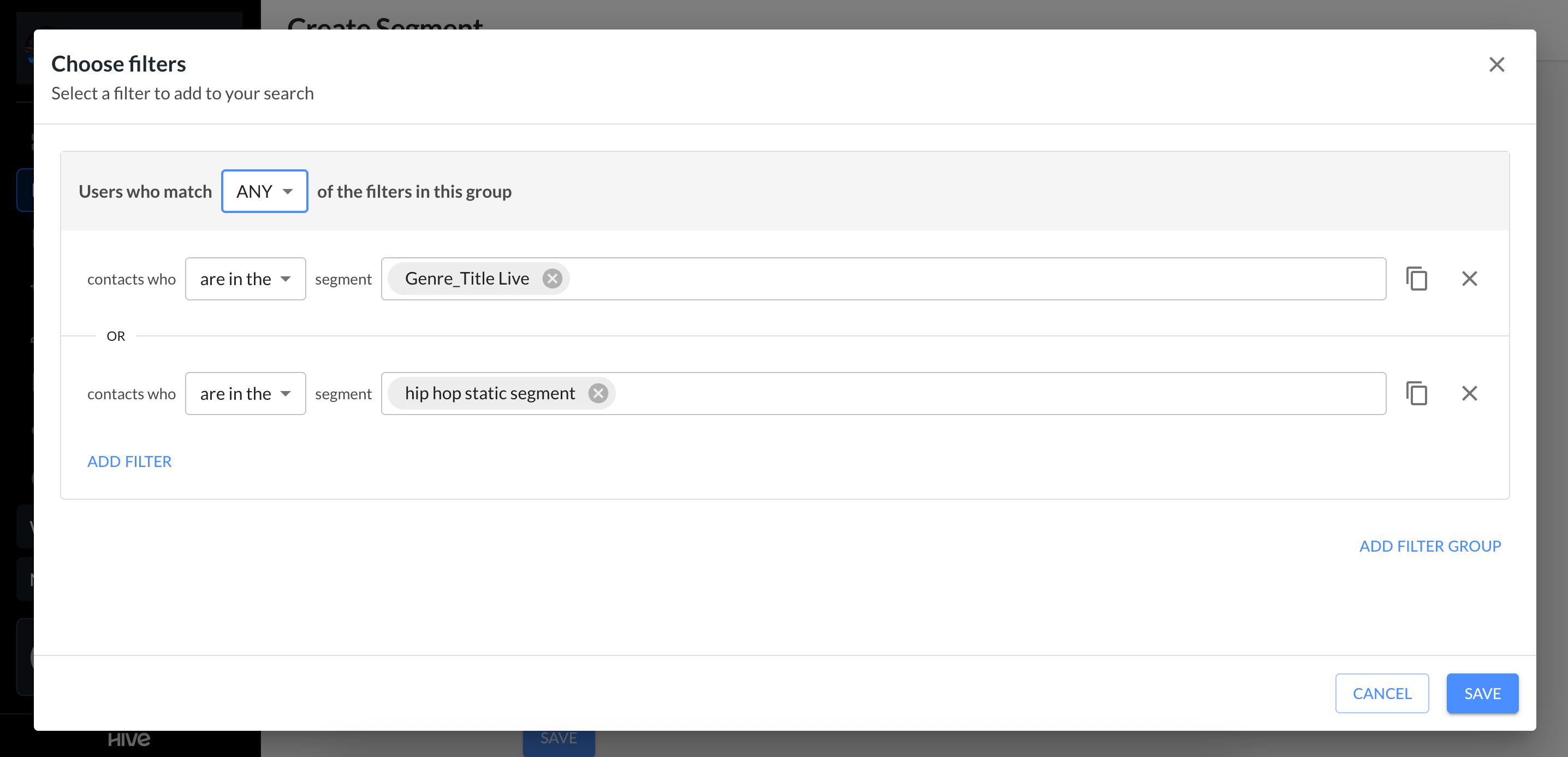
Under popular filters, choose segment
Select the "Genre_Title Live" segment you created in step 1
Click + add filter again
Under popular filters, choose segment
Select your pre-existing static genre segment (e.g., hip hop static segment)
Change the filter logic from and to or — this ensures all contacts from both segments are included
Click save segment
Now, any subscriber who purchases a ticket in that genre will be automatically added to your new combined segment.
Repeat this process for each of your remaining genres to keep your contact lists clean, current, and centralized.