
With Hive’s Quick Campaign functionality, you can easily convert your existing standard templates into dynamic Quick Campaign templates - no need to start from scratch.
Creating a quick campaign template
You can create your first Quick Campaign template directly from the Events page.
Click the Quick Campaigns menu for any event and select the specific campaign type you want to create.
In the pop-up modal, select "Generate a template from a previous email."
Choose a past email to serve as the foundation. Hive will then automatically convert that email into a Quick Campaign template.
Hive will then convert your selected email into a quick campaign template. Once complete, you can make edits to the template itself
In the editor, you can adjust the look and feel of your template. You can also make changes to the template settings:
Update the default settings for any campaigns using this template, including:
Campaign Name
Subject Line
Preview Text
Pro-tip: Use merge tags in your Subject Line and Preview Text. This allows the template to pull event-specific data automatically so you don't have to manually edit them every time you launch a campaign.
Once you’ve completed the template edits, click Save Template to finish.
Managing Your Templates
Once you’ve saved your template, you can find and manage it under Templates > Your Quick Campaign Templates.
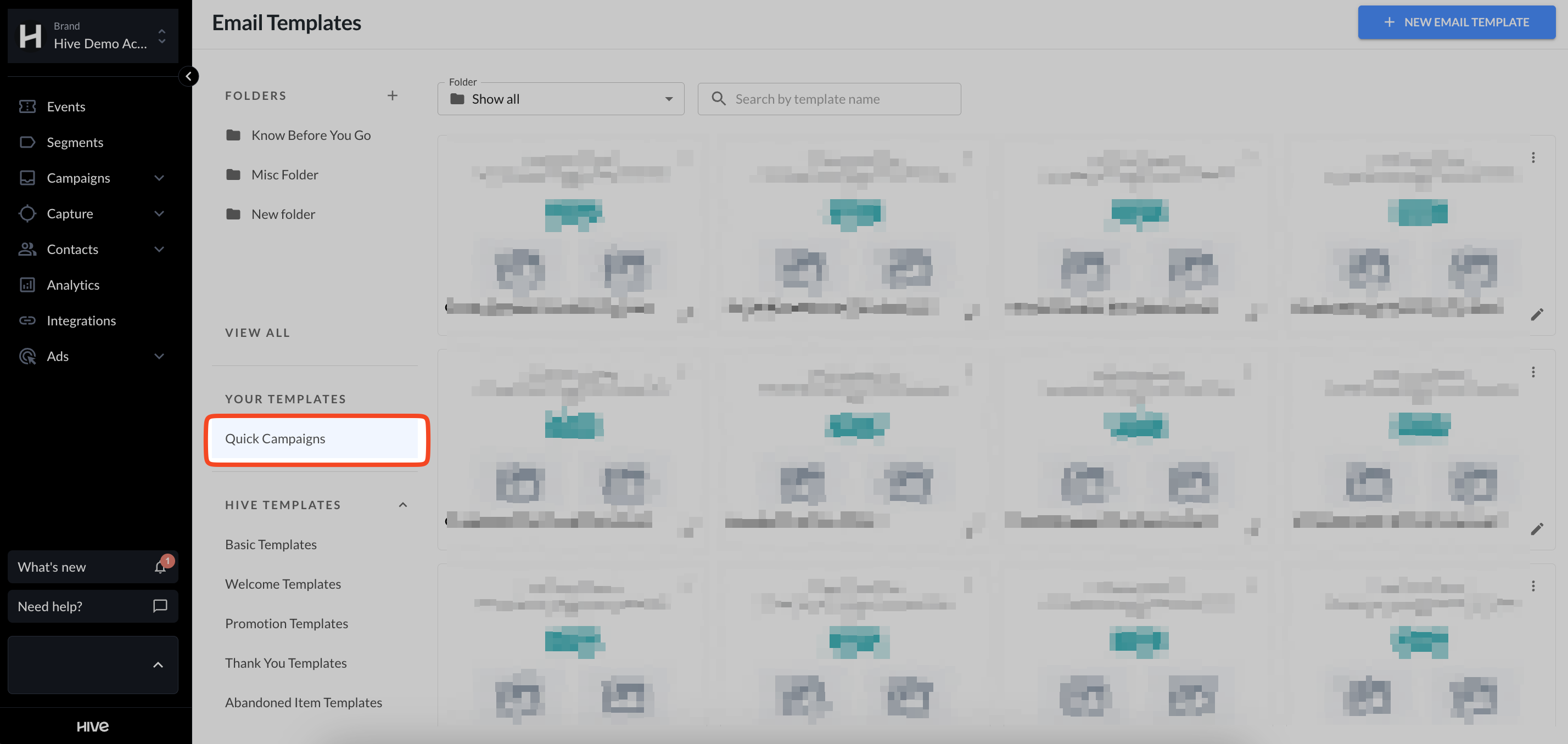
Template Folders & Search
We’ve made it easier to stay organized as your library grows:
Custom Folders: Create and name custom folders to group your templates by venue, campaign type, or season.
Filter by Folder: Use the folder filter to narrow down your view and find exactly what you need.
Search Bar: No more endless scrolling! Simply type the name of your template into the search bar to locate it instantly
FAQs
Q: Can I use different templates for different venues?
A: Absolutely. Quick Campaigns is perfect for multi-venue operations where each location needs specific messaging. You can set up multiple versions of each campaign type (like "Know Before You Go"), each customized for a different venue. When you generate a campaign, you'll see all available templates and select the right one for the event.
Q: What's different about Quick Campaigns compared to regular email templates?
A: Quick Campaigns use dynamic merge tags to pull in event details automatically—like name, venue, date, and door times. You still get the benefit of your proven design, but without the repetitive data entry.