
A Contact Card (also known as a VCF or Virtual Contact File) is a digital contact file that allows recipients to save your brand, venue, or artist contact information directly to their phone.
When included in a text message campaign, the card appears as an attachment that subscribers can open and save instantly to their contacts.
Get Saved. Get Seen.
Adding a Contact Card helps your messages stand out and makes it easy for fans to know exactly who the message is from.
Your brand name, logo, and contact details appear when recipients receive your messages, helping them quickly identify and trust the sender.
Messages from saved contacts are less likely to be flagged as unknown senders or ignored.
Once saved, your brand stays in their contacts so your messages remain familiar and easy to spot, even between campaigns.
Tip: This is especially helpful for festivals, venues, promoters, and artists sending time-sensitive updates who want fans to quickly identify their messages and act fast.
Step 1: Create Contact Card
Go to the SMS Settings page
Log into Hive → Campaigns → SMS → SMS Settings
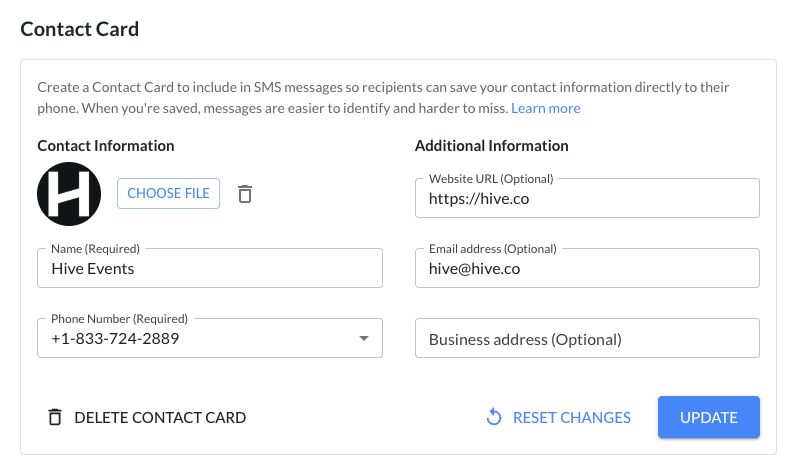
In the Contact Card section, complete the form with your brand or artist details:
Name (required)
Phone number (required)
Logo or profile image (recommended)
Website
Email address
Business address
Select Create.
Your Contact Card is now ready to use in SMS campaigns.
You can update your Contact Card at any time by editing the form fields and selecting Update.
Step 2: Add Contact Card to SMS campaigns
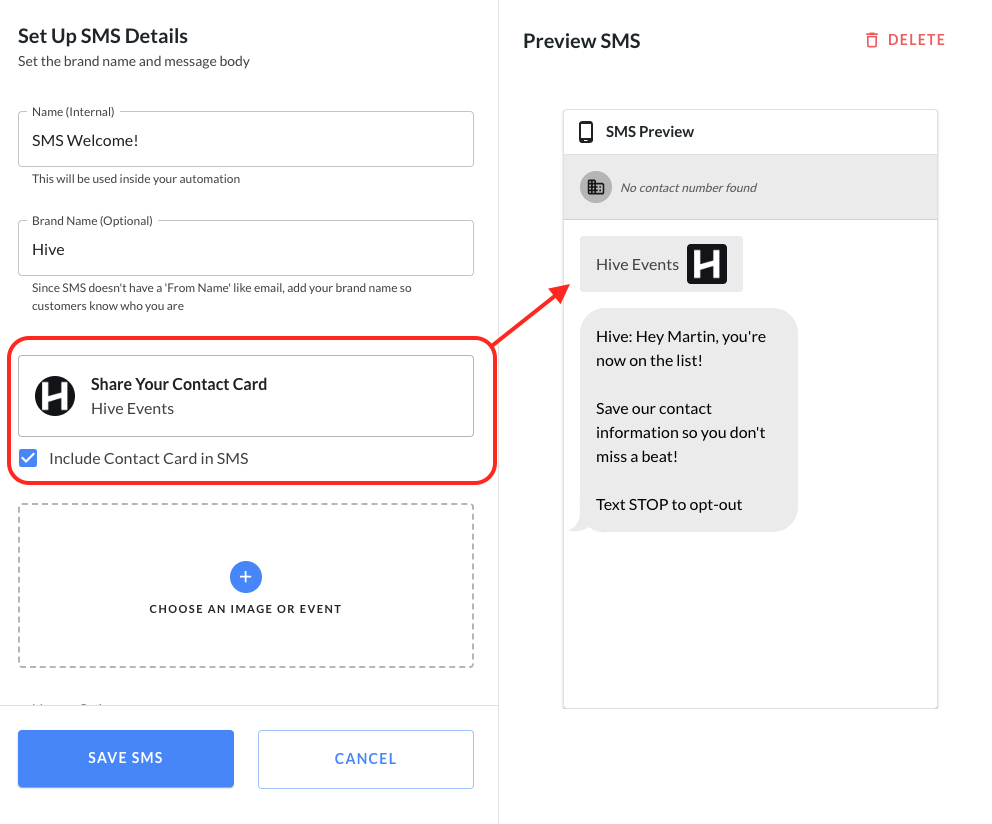
Go to the Edit Message step in the SMS campaign builder.
Select Include Contact Card in SMS, select your Contact Card.
The Contact Card will appear in the SMS Preview.
That’s it! Your Contact Card will now be sent as an attachment with your SMS message.
Note: The visual appearance of a Contact Card may vary depending on the recipient’s device. However, the contact information will remain consistent since Contact Cards follow a standardized format.
Step 3: Add Contact Card to existing Automations
Navigate to Automations.
Select the automation you would like to update.
Select Edit Automation.
Click into the SMS message step.
Select Include Contact Card in SMS.
Save the updated message.
Your Contact Card will now be included in the SMS message within the automation.
Best Practices
Keep your details updated: Make sure your phone number, email, business name, and logo are current so subscribers save accurate contact information.
Use consistent branding: Match the business name and logo in your Contact Card with your branding to build familiarity and trust.
Include only essential information: Focus on the most important details so the Contact Card stays clean and easy to save.
Encourage fans to save your contact: Let fans know in your message to save your contact so they don’t miss ticket drops, show announcements, or important updates.
Examples:
Save this number so you don’t miss future show announcements and exclusive updates.
Make sure to save this contact so you’re the first to hear about ticket drops and upcoming shows.
You’re on the list! Save this contact so you don’t miss lineup announcements, presales, and important updates.
Frequently Asked Questions
Where can I use a Contact Card?
You can include a Contact Card in both one-off SMS campaigns and automation campaigns. We highly recommend adding it to welcome automations, where subscribers are already engaged and more likely to save your contact.
Can I add a Contact Card to existing campaigns?
Yes. You can edit an existing campaign and add your Contact Card at any time. Simply locate the campaign you want to update and follow the steps outlined in Step 2 above.
Will messages with a Contact Card send as SMS or MMS?
Messages that include a Contact Card will automatically send as MMS, since the contact card is delivered as an attachment.
Will sending a Contact Card affect message pricing?
Because Contact Cards are sent as MMS, they will be billed according to MMS message pricing rather than standard SMS pricing.
Can I still include an image if I’m sending a Contact Card?
Yes. You can still include one image in the message along with the Contact Card.
Can I update my Contact Card details later?
Yes. You can edit your Contact Card details at any time by returning to the SMS Settings page and updating the information.
Can I change the phone number on the Contact Card?
The phone number on your Contact Card must match the Hive phone number used to send your SMS campaigns.
Does it automatically save a Contact Card to a recipient's phone?
No. Recipients can choose whether or not to save the Contact Card. It will appear as an attachment in the message that they can open and add to their contacts if they’d like.
What will the Contact Card look like on a recipient’s phone?
The appearance of a Contact Card may vary depending on the recipient’s device and messaging app. However, all Contact Cards follow a standardized format, so the contact details will remain consistent.
Why isn’t my logo showing when I tested it?
The logo or image preview does not always display within the message thread. Instead, devices will sometimes show the first letter of the contact name. This is expected behavior and is determined by the recipient’s device.
Why does the logo appear as a square instead of a circle on iOS?
On iOS, contact images may appear as a square or a circle depending on how the contact is categorized.
Contacts saved as a business typically display as a square
Contacts saved as a person typically display as a circle
To ensure your Contact Card is treated as a business, use only the Company Name field and avoid adding a first or last name.
Can I track clicks or engagement on the Contact Card?
No. Contact Cards are sent as file attachments, so clicks on the Contact Card are not tracked in Hive reporting.
What happens if I have multiple sending numbers?
If your account includes multiple sending numbers (such as a toll-free number and a short code), all associated numbers will be included on the Contact Card automatically.
Need help? Reach out to Support@hive.co