
Having capture tools directly to your Shopify store helps you grow your list at the moment of highest intent—while visitors are browsing and buying.
Note: By default, your Shopify store includes a newsletter signup form. If you use this form, any new signups will automatically sync into your Hive account as contacts.

Before you start
Have your Hive embed code ready (from your Hive dashboard: open the capture item → Share).
Make sure you have Shopify theme editing access.
Add Hive capture to your Shopify theme
In Shopify, go to Online Store (under Sales channels).
Click Customize on your active theme.

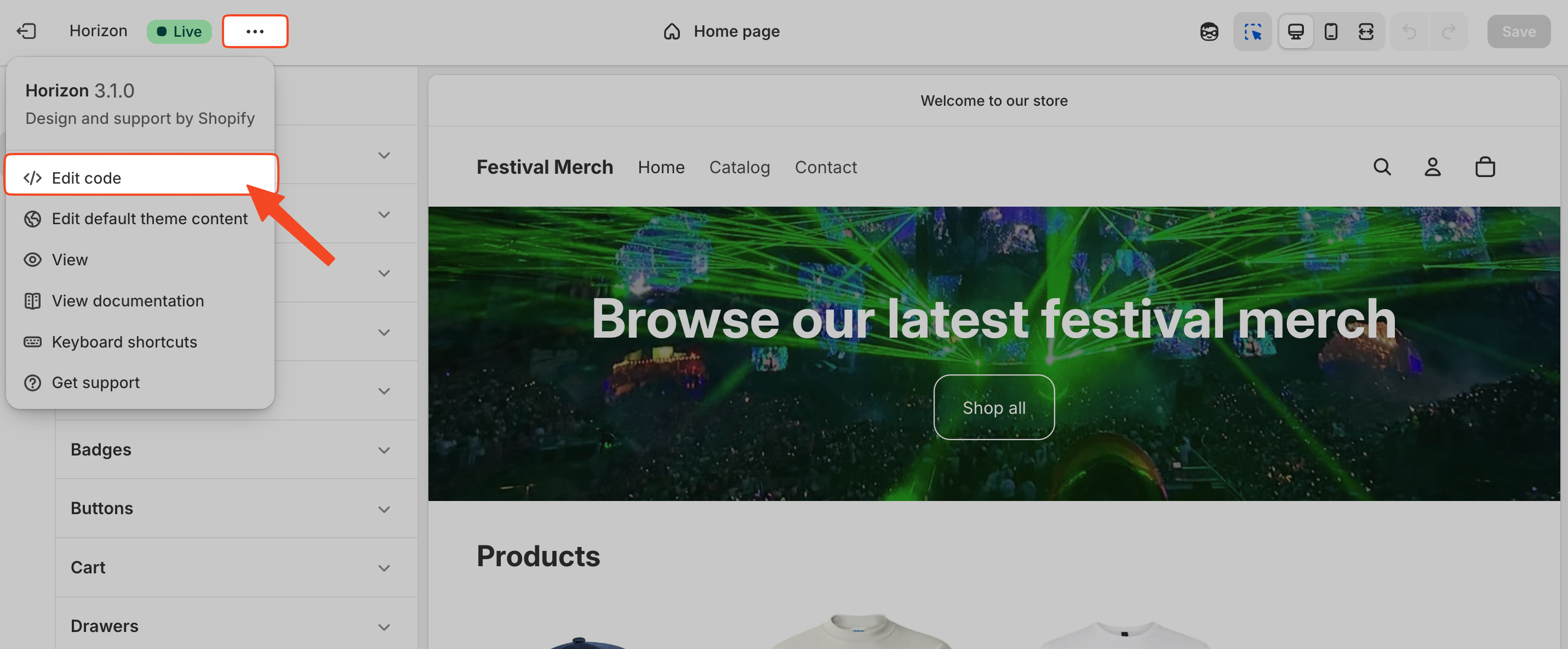
Open the More actions menu and select Edit code.
Choose the .liquid file where you want the widget to appear.
Common choices:
index.liquid(home page)product.liquidor a product section (on product pages)cart.liquid(cart page)A global section/snippet included site-wide (for a consistent placement)

You can also open the page where you’d like to add the code, click Add section, and select Custom liquid.

Paste your Hive embed code from the Hive dashboard (Signup form, Contest→ Share).
Click Save.
Visit your storefront and verify placement, styling, and behaviour.
Placement tips
Home page: Great for broad list growth.
Product pages: Capture interest tied to specific products or collections.
Cart page: High-intent signups before checkout.
Exit intent modal: Catch visitors before they leave (pair with a welcome perk).
Troubleshooting
Widget not showing: Confirm you placed the code in the active theme and saved changes; clear cache and hard refresh.
Styling issues: Adjust theme CSS or wrap the embed in a container/div with your theme classes.
Multiple placements: Ensure the snippet isn’t duplicated across templates unless intentional.